
Exclude internal traffic and manage visitor data (IP exclusion, query-parameter anonymization, UUID data requests, custom visitor identifiers)
Keep internal traffic out of your reports, stop sensitive URL parameters from reaching Wingify, answer data-subject access and deletion requests by UUID, and identify visitors with your own customer ID.
The Wingify Guide can move a cursor on your screen inside the app and walk you through this, click by click (7 steps).
#When to use this
Your marketing team visits the pages you test all day, and their clicks inflate your conversion rate. Your checkout URLs carry ?email= parameters. Your DPO has also received a request from a customer who wants their data deleted. This guide covers these operational data controls. They live on three settings pages: Privacy Center, Security and Campaigns. For storage choices, Do Not Track and cookie consent, see Configure privacy & GDPR settings.
#Before you start
- You need Admin access to the main workspace. Users with Publish or Browse access can see the IP exclusion list but can't change it.
- Custom visitor identifiers require the Enterprise plan (for accounts created on or after June 14, 2026) and SmartCode 3.0.
#Steps
#1. Exclude internal IP addresses
Go to Settings > Privacy Center and scroll to IP Addresses to Exclude. Choose a method:
- Multi Line or Regex: one IP address or regular expression per line, then Add to list.
- Range: enter IP Start and IP End, then Add to list. Both ends are included, and the end must be higher than the start.
IPv4 and IPv6 are both supported. Plain entries are contains matches: 8.8.8.5 also excludes 18.8.8.5 and 8.8.8.50. For an exact match, use a regex such as ^8.8.8.5$. To remove an entry, click its x icon.
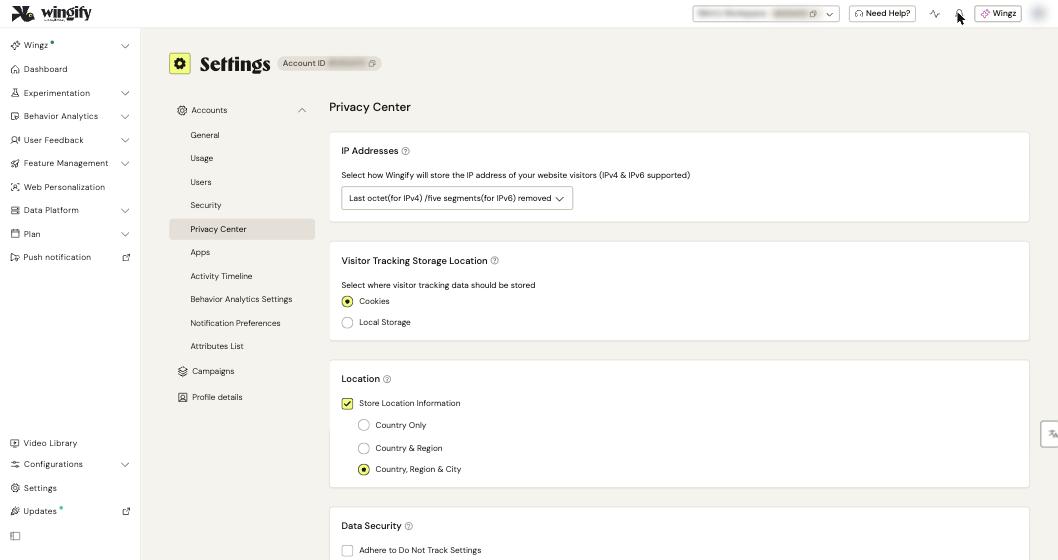
Note: Excluded visitors still see your variations, heatmaps and surveys. Only their visits and actions are left out of reports. To limit who sees a campaign during QA, use QA Configurations instead (see Preview, QA and launch).
#2. Anonymize sensitive query parameters
On the same page, find Anonymize Query Parameters. By default, Wingify detects email addresses, phone numbers, credit card numbers, passwords, SSNs and IP addresses in URLs, as well as parameters that look like tokens or usernames. It replaces them with wingify_anonymized before they reach its servers.
- Add parameters to the blacklist to always anonymize them. Regex values are accepted, for example for an email pattern.
- Add parameters to the whitelist to send them unchanged because they contain nothing sensitive.
Passwords are always anonymized, even if whitelisted. Numeric inputs such as card numbers are replaced with zeros. Click Save.
#3. Find a visitor's UUID
Wingify stores each visitor's data against a browser-specific UUID kept in a cookie. To find it, open the website in the visitor's browser and open developer tools. In Chrome, go to Application > Cookies; in Firefox, go to Storage > Cookies. Read the value of _wingify_uuid (accounts created on or after June 14, 2026) or _vwo_uuid (older accounts). A visitor who uses several browsers has several UUIDs.
#4. Extract or delete the data for that UUID
Go to Settings > Security and scroll to Extract / Delete Data for a specific UUID. Paste the value in UUID, then click Download Data (right of access) or Delete Data (right to erasure). Wingify Support contacts you once the request is received and, for access requests, provides a link to the data.
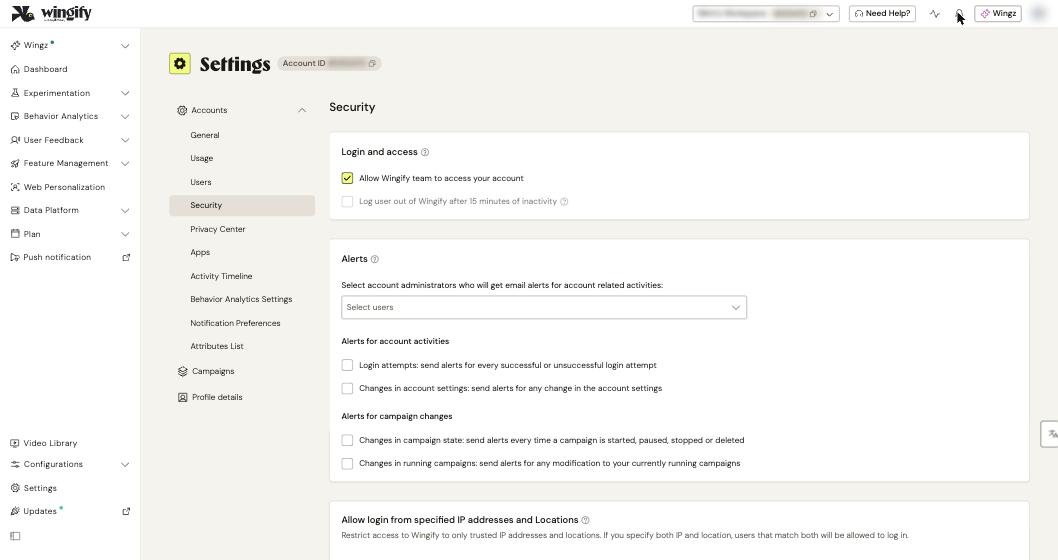
Warning: For some campaign types, such as A/B tests and personalization, a single UUID can't be removed from results. To remove it completely, you must flush the whole campaign's data and restart it.
#5. Identify visitors with your own ID (optional)
Go to Settings > Campaigns > Visitor identifier. In Identifier type, choose Cookie, Local storage or JavaScript variable instead of Wingify assigned UUID. Then:
- Enter the exact Identifier name, such as
customer_id. The value must exist before the SmartCode runs. - Optionally, add a Pattern to extract ID, for example
uid:(.*)turnsuid:8842911into8842911. - Select I confirm there is no PII in the visitor identifiers. Save stays disabled until you do.
- Click Add another identifier to add fallbacks (P1, P2, P3). Put Wingify assigned UUID last. If it's first, your own IDs are never used.
- Leave Override existing identifier for the users cleared to keep returning visitors on their current ID. If you select it, returning visitors are re-identified with the new value and appear as new users.
- Click Save.
Choose a stable ID. Session IDs, values regenerated on each page, or values taken from URL parameters inflate visitor counts. The setting applies to every campaign and product in the account.
#Check that it worked
- IP exclusion: browse a running campaign from the excluded network. Your visit shouldn't be counted in the report.
- Anonymization: visit a campaign page with a blacklisted test parameter in the URL. Wherever Wingify shows that page URL, the value should appear as
wingify_anonymized. - Custom identifier: in a fresh incognito window, check that your cookie, key or variable exists and that the Wingify UUID cookie now has the same value. Then search that value in Data Platform > Profiles (Look up a visitor's profile).
#Common questions
Do excluded IPs still count toward my plan usage? The help center only states that their activity is left out of reports. For quota questions, contact Wingify Support.
Can I exclude visitors by cookie instead of IP? Not with this setting. For internal QA, use a Cookie Value or Query Parameter rule in QA Configurations.
Can I use a different identifier per campaign? No. The Visitor identifier is account-wide, to keep data consistent.
Does a custom identifier work across domains? Yes, as long as the same value is available on every domain. See Track visitors across multiple domains.