
Build a funnel report to find drop-offs
Define the steps of a conversion path in Data Platform, turn it into a Funnel Report, and see at which step visitors leave.
The Wingify Guide can move a cursor on your screen inside the app and walk you through this, click by click (4 steps).
#When to use this
Your store gets plenty of product page views but few orders, and you need to know where the journey breaks: adding to cart, starting checkout, or paying. A funnel lists these steps in order and shows how many visitors reach each one, so you can focus on the step with the biggest drop-off, then open heatmaps and recordings of the visitors who left there.
#Before you start
- Your account has Data Platform enabled. Funnel steps are built from Data Platform events (such as Page Visit or Click) and metrics.
- The Wingify SmartCode is installed on every page in the path.
- Funnels only collect data from the moment they start tracking. They don't build reports from past data.
Note: Starting September 9, 2026, new accounts find Funnel Reports in Journey Analytics instead of Behavior Analytics. Existing accounts keep Behavior Analytics > Funnel Reports. See Use Funnel Reports in Journey Analytics.
#Steps
#1. Create the funnel definition in Data Platform
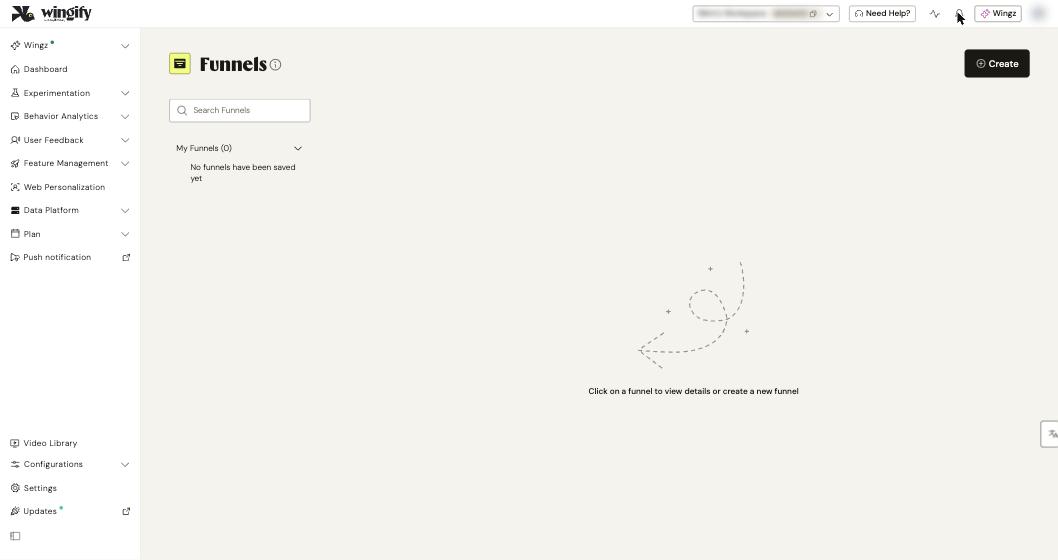
Go to Data Platform > Funnels and click Create. Enter a name, for example Product page to Checkout.
#2. Add the steps in order
Click Add a step for each stage of the journey:
- Page Visit – for example, the product page; specify its URL.
- Click – for example, the add-to-cart button; specify the button text.
- A metric – for example, a checkout metric you already track.
You can add up to 35 steps. Order matters: visitors must complete the steps in sequence to count as converted, though they can do it across several sessions. Click Create to save the definition.
Tip: One definition can feed several reports. Create one report per segment (for example, one per region) instead of duplicating the steps.
#3. Create a funnel report
On the funnel's page, click Create a funnel report at the top right. You're taken to Behavior Analytics > Funnel Reports.
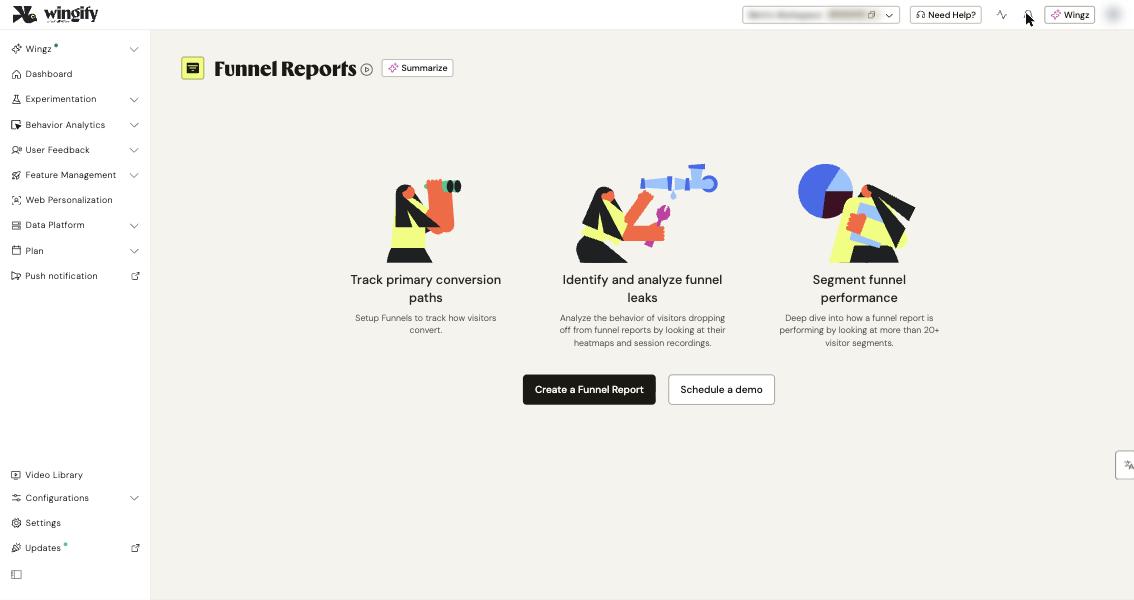
Alternatively, go to Behavior Analytics > Funnel Reports and click Create a Funnel Report (or Create if you already have reports). Then either choose an existing funnel or build a new one from there.
#4. Name the report, choose visitors and start tracking
Name the report and, if needed, apply segmentation to limit which visitors enter the funnel. Click Create, then click Start Tracking.
Warning: Editing a funnel definition while one of its reports is running flushes that report's data and starts over. To change a live funnel, clone it instead.
#5. Read the report and find the drop-off
Open the report's Report tab. The funnel overview shows visitors at each step and the drop-off percentage between steps, which is the share of visitors who didn't continue to the next step. Narrow the data with:
- Date Filter – last 30 days by default.
- User Segments – for example, mobile vs. desktop.
- Report Segments – for example, Funnel Trigger Time (Day of Week), Funnel Trigger Time (Hour of Day) or Funnel Revenue.
The Configuration tab shows the steps and any pre-applied segmentation.
#6. Watch what happens at the leak
From the drop-off value, open the heatmaps and recordings of visitors who dropped off at that step. You can also filter Session Recordings with the Funnel Drop Off attribute under Visitor Segments.
#7. Use the funnel in a test (optional)
When you create a test, open the Metrics step, click Add under the primary or secondary metric, open the Funnels tab and pick your funnel. With a funnel as the primary metric, Wingify decides the winner based on the final step only. Funnels in tests are available on Enterprise plans and are being rolled out in phases.
#Check that it worked
The report shows a running status after Start Tracking, and the funnel definition appears under Data Platform > Funnels. Funnels created from Funnel Reports appear there only after tracking starts. Walk through the path yourself; your visit should appear in the first steps once data is processed.
#Common questions
My visitor completed every step but counts as a drop-off. Why? Steps must be completed in the defined order. In Journey Analytics funnels, the visitor also has to finish within the conversion window set under Complete all steps within.
A step shows no data. What should I check? Check the step's conditions, such as the URL match or button text. If they're too narrow or don't match your live page, the step never fires.
I have old goal-based funnels. Do they still work? Goal-based funnels are being discontinued. On Behavior Analytics > Funnel Reports, click try migrating this Funnel on the funnel's card, review the steps, click Create, then Start Tracking. Migrated funnels keep their historical data. Migration can't be undone.
What happens if I change a funnel used in a test? You can't edit it from the test setup. You're redirected to Data Platform, and your changes apply to every test and report that uses the funnel.