
Fix a campaign or variation that isn't showing
Work through a checklist to find out why visitors (or you) don't see your test variation, or see a flicker, and fix the cause: SmartCode, URL targeting, cookies, cache, timeouts or element selectors.
The Wingify Guide can move a cursor on your screen inside the app and walk you through this, click by click (4 steps).
#When to use this
You launched a test, opened the page and still see the original. Or a colleague sees the variation but you don't. Or the original page flashes for a split second before the variation appears. Work through the steps below in order. Most issues come from the SmartCode, URL targeting, the browser (cookies, cache, blockers) or elements the variation can't find.
#Before you start
- You have access to the campaign in Experimentation > Web Experimentation.
- Running the Debugger requires Publish, Admin or Owner access; Browse users can't debug.
- If you'll need to edit code on your site, have access to the page source or tag manager.
#Steps
#1. Check the campaign status and targeting summary
Open the campaign from Experimentation > Web Experimentation. Make sure its status isn't Draft or paused; a draft can only be previewed. Then open REVIEW > Configuration summary and check the included URLs, audience and traffic allocation. If only a share of traffic enters the test, or a segment applies, you may simply not qualify.
#2. Run the Debugger on the page
In the campaign, go to REVIEW > Debugger, enter the page URL and click Debug. The scan usually takes about 60 seconds. The report lists Errors, Warnings, Checks Passed and Checks Skipped. Look for:
- SmartCode Detection Check and SmartCode Account Mismatch – the code is missing or belongs to another account.
- SmartCode Placement Check and SmartCode Dynamically Injected – the code isn't in the
<head>. - Duplicate SmartCode Check – the code was added twice, which can cause flicker or blank pages.
- Cookie Consent Failure Check – a consent manager blocks the SmartCode.
- CSP Errors Check – your Content Security Policy blocks Wingify.
Fix the errors, then click Rerun. You can also run a site-wide scan from Configurations > Websites and Apps > Debugger.
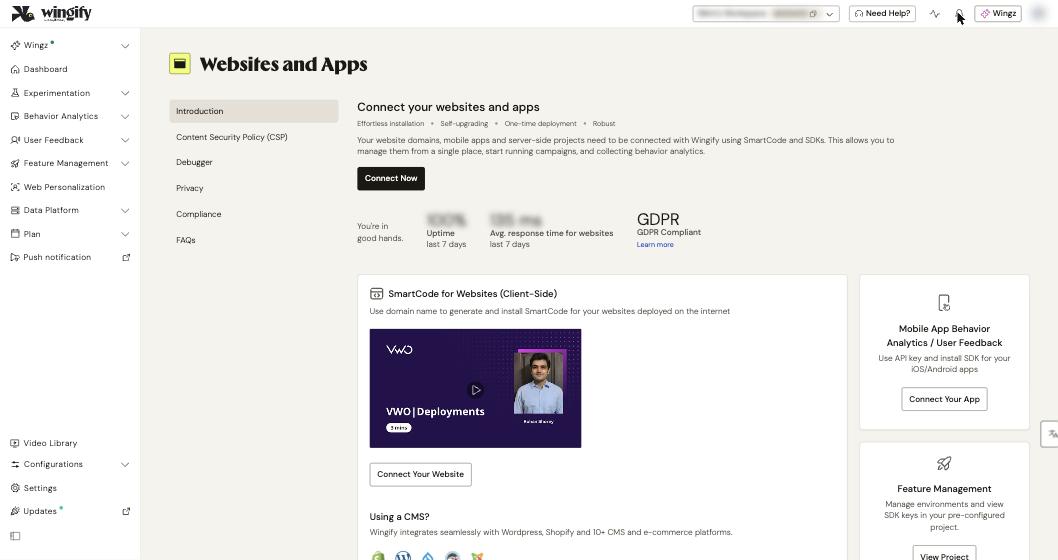
Tip: For a quick yes/no, open your website under Websites and Apps. On the Code tab, enter the URL in Check if SmartCode is installed properly on your URL and click Check.
#3. Verify that the page URL matches the campaign
Wingify only runs where the URL matches exactly as configured:
- HTTP vs. HTTPS are different. If both exist, use a pattern like
http*://www.example.com/*. - Trailing slashes matter.
*knowledge/*does not matchhttps://example.com/knowledge. Leave out the trailing slash unless you need it. - Redirects: target the final URL visitors land on.
- Regex: escape special characters, for example
http:\/\/www\.example\.com\/(page1\.html|page2\.html).
If the preview shows Matching Test page Pattern: Failure, the URL you're on doesn't match these rules.
#4. Preview with the QA Assistant
Go to REVIEW > Live Preview and click Preview in a new tab. The QA Assistant appears at the bottom of your page. If it doesn't appear at all, the SmartCode didn't run on that page (go back to step 2).
In Current Campaign, select the campaign and open Validations. Each rule (Page URL, Segment, Trigger, Display Frequency) shows a green check or a red X; the red X is your blocker. Use Force to apply the campaign anyway, or switch variations to check that each one renders. All Campaigns > On this page shows other campaigns that may conflict.
#5. Rule out your browser: cookies, cache and blockers
- Returning visitor cookie: Wingify remembers the variation a visitor saw. If you were bucketed into Control, you keep seeing Control. Clear cookies or use a private window.
- Cache: clear the browser cache, hard-refresh the page, and clear your server or CDN cache if your site uses one.
- Blockers: ad blockers such as uBlock can block Wingify's network calls. Allowlist
@@||*.wingify.net^(accounts created on or after June 14, 2026) or@@||*.visualwebsiteoptimizer.com^(older accounts) under My filters. - Safari and Firefox privacy settings: disable Prevent cross-site tracking in Safari. In Firefox's custom privacy settings, disable blocking of Cookies and Tracking Content.
- Cookies disabled: Wingify can't run tests for visitors who block cookies or JavaScript.
#6. Fix timeouts and flicker
If the SmartCode times out (for example, "Wingify test settings timed out" in preview), visitors see the original and aren't counted. Go to Configurations > Websites and Apps, select your website, click the ellipsis on the SmartCode widget and choose Settings. Raise Settings timeout and Library timeout from 2000/2500 ms, up to a maximum of 5000 ms.
To reduce flicker:
- Place the SmartCode as high as possible in the
<head>, not at the bottom of the page. - Avoid loading it through an asynchronous tag manager; add it directly or set the tag manager to synchronous.
- Keep variation images light.
- For changes made with custom JavaScript, follow the snippet in the flicker article.
#7. Make sure the variation can find its elements
If the preview says Element not loaded, the element's CSS path changed or uses dynamic IDs. Configure the Selector Path Options in the editor settings. For content loaded later by AJAX or single-page apps, use Add code to poll for elements in the code editor, or configure the SPA/SSR editor settings. If CSS changes don't stick, add !important.
#Check that it worked
Rerun the Debugger until it shows no errors. Then open Live Preview in a private window: the QA Assistant should show the campaign as accepted, with all validations green, and your variation should render. After launch, check that visitors appear in the campaign report.
#Common questions
I disabled a variation, but some visitors still see it. Why? Visitors keep the variation stored in their cookie so their experience stays consistent. To remove a variation cleanly, clone the campaign and disable the variation in the clone.
The dashboard says "SmartCode Not Installed", but it is. Is that a problem? Not for data collection. The status only updates after a visitor loads the page, can take a few minutes, and can't verify pages behind a login or matched by patterns. Visit the page and refresh the app.
It works in Chrome but not in another browser. What now? The element's CSS path may differ between browsers, or the browser may not support a JavaScript function you used. Apply the change with custom code in the code editor, adding a browser check if needed.
Does Wingify count visitors when it times out? No. Neither visits nor conversions are tracked for timed-out page loads.
#Learn more
- Troubleshooting: Variation Changes Are Not Appearing
- Troubleshooting: Unable to Preview Tests
- Why Do I Notice a Page Flicker?
- SmartCode Debugger in Wingify
- Use the QA Assistant to Preview and Debug Campaigns
Help-center sources (13)
- Troubleshooting Variation Changes Are Not Appearing in Wingify
- Troubleshooting Unable to Preview Tests in Wingify
- Why Do I Notice a Page Flicker When the Wingify Test Page is Loading
- Why Does Wingify SmartCode Time out and How to Resolve It
- Troubleshooting Changes Aren t Appearing on a Specific Browser in Wingify
- Troubleshooting Visitors Still See the Disabled Variation of a Campaign in Wingify
- Visitors Not Being Tracked Properly by Wingify
- Troubleshooting Invalid URL Patterns Involving Trailing and
- Can I Run Wingify Tests on a Website That Has Cookies Disabled
- SmartCode Debugger in Wingify
- SmartCode Checker in Wingify
- Why Do I See the SmartCode Not Installed Message
- Use the QA Assistant to Preview and Debug Campaigns in Wingify