
Send Wingify data to GA4 and use Google Tag Manager
Set up GTM to forward Wingify campaign data to GA4, connect Wingify to Google Tag Manager, target visitors with data layer values, and stream GTM events into Wingify.
The Wingify Guide can move a cursor on your screen inside the app and walk you through this, click by click (8 steps).
#When to use this
Your site loads Google Analytics 4 through Google Tag Manager (GTM), and you want to compare Wingify variations in GA4 reports. Or you want to use GTM as the hub between Wingify and your other tags. This guide covers three setups:
- GA4 via GTM: Wingify pushes campaign data to the data layer, and a GTM tag forwards it to GA4.
- GTM integration: Wingify sends campaign or survey data to GTM, and you can target visitors with data layer values.
- Event streaming: your existing GTM events flow into Wingify Data Platform.
If GA4 is installed directly on your site (gtag.js), skip the GTM part and follow Connect an integration.
#Before you start
- The Wingify SmartCode and your GTM container are installed on your pages. See Install the Wingify SmartCode.
- You can publish in GTM, and you have Admin access in Wingify to create connections.
- Check when your Wingify account was created. Accounts created before June 14, 2026 use
vwonames, and newer accounts usewingifynames. - Event streaming from GTM is only available for Data Platform accounts.
#Steps
#1. Create the data layer variable in GTM (GA4 via GTM)
You only need to do this once for all campaigns. In GTM, create a Data Layer Variable:
- Title:
Wingify-Exp-Variant-String. The titles in this guide are examples. Use your own naming convention if you prefer. - Data Layer Variable Name:
wingify_exp_variant_string(older accounts:vwo_exp_variant_string) - Data Layer Version: Version 2
- Turn on Set Default Value and enter
0, then click Save.
#2. Create the trigger
Go to Triggers > New. Name it Wingify-Data-Push-GA4-Trigger. Under Trigger Configuration, choose Custom Event and enter the event name wingify (older accounts: vwo-data-push-ga4). This event name is built into the Wingify library. Click Save.
#3. Create the GA4 event tag
Go to Tags > New > Google Analytics: GA4 Event:
- Measurement ID: your GA4 ID. If GTM manages several GA4 properties, leave it blank so GTM routes the data.
- Event Name:
experience_impression. Always use this name. - Event Parameters: add the parameter
exp_variant_stringwith the value{{Wingify-Exp-Variant-String}}. - Firing Triggers:
Wingify-Data-Push-GA4-Trigger.
Save the tag and publish your container.
#4. Create the GA4 connection in Wingify
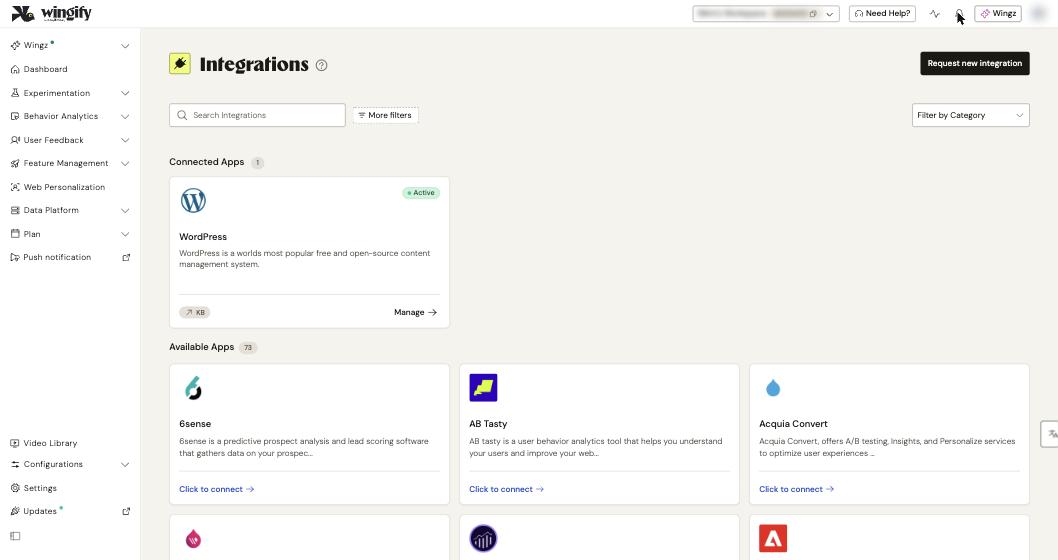
Go to Configurations > Integrations, open Google Analytics 4 and click Create Connection > Send campaign data to GA4. Enter a Connection Name. You can also add a Measurement ID and click Sign in with Google to select the GA Account and Property/App, which is required for creating GA4 audiences. Then click Create Connection.
#5. Connect Google Tag Manager (optional)
To send data to GTM for your own tags, open Google Tag Manager (GTM) in Configurations > Integrations and click Create Connection. Choose one of these types:
- Send campaign data to Google Tag Manager (GTM): sends campaign and variation data.
- Send survey data to Google Tag Manager (GTM): sends survey responses.
Enter a Connection Name and click Create Connection. Switch on Default to apply the connection to all new campaigns. Existing campaigns aren't affected.
#6. Turn the integration on in your campaigns
Open the campaign in Experimentation > Web Experimentation and go to the Integrations step. Select Google Analytics 4 or Google Tag Manager (GTM), pick the connection if you have several, and click Save Now.
To target visitors with GTM data, go to the Targeting step and create a Custom Segment with the GTM Data Layer condition. You can combine several conditions with and/or. Then click Save Segment.
#7. Stream GTM events into Wingify (Data Platform accounts)
To reuse your GTM events, such as "Add to Cart" or "Purchase", in Wingify:
- In GTM, go to Templates > Tag Templates > Search Gallery. Find VWO Event Streamer and click Add to workspace > Add.
- Create a tag with the VWO Event Streamer template. Optionally, map nested JSON fields, add custom properties, or exclude events and properties.
- Add a trigger: Custom Event, with the event name
.*and Use regex matching selected. Publish the container.
The streamer only reads events pushed with dataLayer.push({"event": "event_name"}) or gtag("event", "event_name"). It doesn't import events from GA itself, and GTM system events such as gtm.load aren't forwarded. If your data layer has a different name, change DATALAYER_VARIABLE_NAME in the template code and give the template read access to that global variable.
#Check that it worked
- GA4: on a page with a running campaign, open your browser's developer tools and filter the Network tab on "collect". Look for
experience_impressionwithexp_variant_stringset towingify-<campaign ID>-<variation ID>(older accounts:VWO-). In GA4, the Experience - variant ID dimension also shows these values. - Event streaming: in Data Platform > Events, your GTM events appear under Unregistered Events. Register them to use them in metrics, triggers and segments. See Track custom events and attributes.
#Common questions
Do I repeat the GTM setup for every campaign? No. The variable, trigger and tag are a one-time setup. You only select the integration in each campaign.
GA4 audiences aren't being created. Why? Audiences need a Send campaign data to GA4 connection with a GA Account and Property/App selected. That means signing in with Google. They're created when you start the campaign or save changes to a running campaign, not while it's in Draft. This feature needs an Enterprise plan.
My streamed events don't appear in Wingify. Check that the SmartCode is on every page that fires the GTM events, that your account has Data Platform, and that the events use dataLayer.push or gtag.
I use the old UUID data layer variable and tags. Do I still need them? No. The Wingify-UUID variable and the ID-push trigger and tag are no longer needed to import GA4 audiences. You can remove them.