
Run account-based marketing (ABM) campaigns
Bring your target accounts into Wingify from your CRM, a CSV file or a B2B intent tool, build lists in Data Studio, and target or personalize tests for those companies and contacts.
The Wingify Guide can move a cursor on your screen inside the app and walk you through this, click by click (9 steps).
#When to use this
You sell B2B software, and sales has a list of 300 target accounts. You want visitors from those companies to see a homepage with logos and case studies from their industry, and to A/B test which headline converts them best, without changing anything for other visitors. Wingify's ABM campaigns combine three things: account data (CRM, CSV or IP-reveal tools), lists built in Data Studio, and targeting and personalization in Web Experimentation and Web Personalization campaigns.
#Before you start
- ABM campaigns and Data Studio require an Enterprise account with the Data Studio add-on.
- You need Owner or Admin access to set up integrations, and Publish or Admin access to upload CSV files.
- To recognize anonymous visitors, you need an active IP-reveal integration. The help center names 6sense and Clearbit for ABM identification.
- CRM sync supports Salesforce, HubSpot and Marketo, plus admin access to that CRM.
#Steps
#1. Bring your account data into Wingify
Pick one or more sources:
- CRM: go to Configurations > Integrations, open the Salesforce, HubSpot or Marketo tile and click Create Connection. For Salesforce, choose ABM - Import CRM data from Salesforce. Authenticate, then Map fields for Accounts, Contacts and Leads, and click Save and sync. Data syncs every 24 hours, and changing a field mapping triggers a full re-sync. Leads and contacts are merged into Contacts.
- CSV file: see step 3.
- Your own login data: call
window.Wingify.identifyVisitor("<user-id>", { email: "...", company: { domain: "...", industry: "..." } })when a user signs up, logs in or updates their profile. This requires your developers.
#2. Connect a B2B intent or IP-reveal tool
In Configurations > Integrations, search for your tool and click Create Connection. Integrations include 6sense, Demandbase, Albacross, Clearbit, ZoomInfo and Triblio. Most offer these connection types:
- Import Attributes from … to target visitors on firmographics such as industry, company size or revenue. Available from the Pro plan.
- Enrich visitor data with … to add these attributes to visitor profiles and Data Platform reports. Enterprise with Data Platform.
- ABM - Identify accounts using 6sense / … using Clearbit to match anonymous visitors to accounts.
Tool-specific setup applies. Demandbase needs its IP API on your pages, with the result stored in a global variable. Clearbit reads the Reveal API variable (reveal_organization by default). See Connect an integration.
#3. Review accounts and upload a CSV in Data Studio
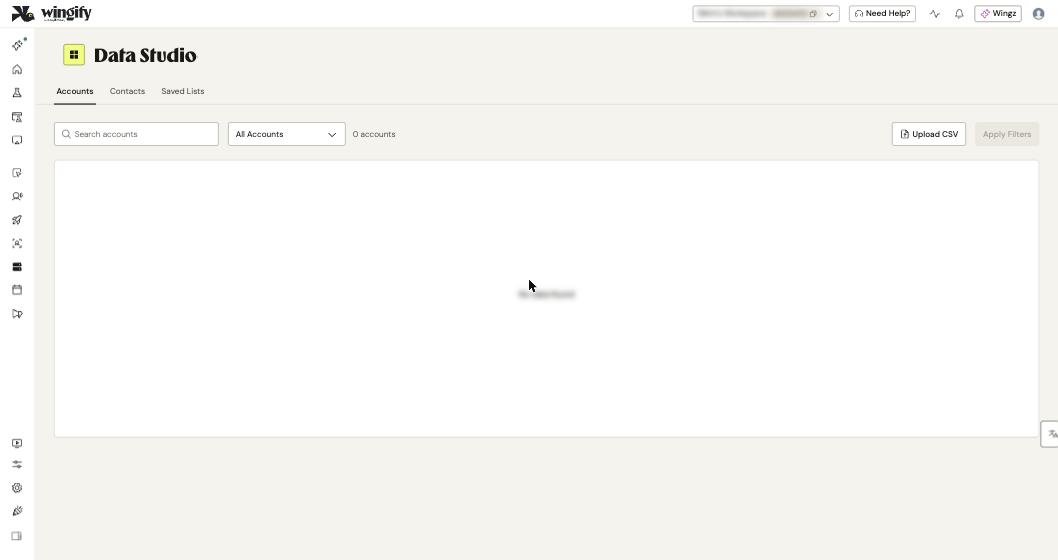
Go to Data Platform > Data Studio. The Accounts tab lists companies (domain, industry, employee count, revenue…). Contacts lists individuals (email, name, title, company), and Saved Lists holds your lists.
To import offline data, open Accounts or Contacts and click Upload CSV:
- up to 5,000 rows, with no duplicate or empty rows;
- a Domain column for accounts, or an Email column for contacts.
Invalid rows are highlighted in red. Use Show only invalid rows to find them, delete them, then click Import.
#4. Save a target list
On Saved Lists, click Create List and choose Accounts or Contacts:
- Create a new list in Accounts/Contacts Studio: filter the records (for example, Industry = Information Technology and Employee count > 200), click Apply, then Save as List. This creates a dynamic list that updates when your CRM data changes.
- Upload CSV: creates a static list.
Name the list and click Save.
#5. Target the campaign at your list
Create an A/B test (Experimentation > Web Experimentation > Create > AB - Single Page) or a Web Personalization campaign. In Targeting, open Custom Segment. Choose Wingify Account Lists, then Part of or Not part of, pick your saved list and click Apply. You can also target Wingify Accounts or Wingify Contacts attributes directly (for example Company Domain), or 6sense and other intent attributes.
With intent-tool attributes, Wingify waits up to 5 seconds for the data (Poll Until > Custom Event). If the data doesn't arrive in time, the condition doesn't apply.
#6. Personalize the content
In the Visual Editor, select an element and click Edit Element. In the text field, click Add Variable and choose a CRM variable such as Company Industry. This turns "Built for teams like yours" into "Built for Travel companies".
#7. Decide who counts as identified
In the campaign, go to More configurations > Additional options > Audience Settings and choose one option:
- Show to known visitors only;
- Show to known visitors & visitors matched via high-confidence IP enrichment;
- Show to known visitors & any visitors matched via IP enrichment, which is the default.
#Check that it worked
- In Data Studio, confirm that your accounts and contacts appear after the first sync. This can take a few minutes, depending on data volume.
- Preview the campaign from a network or login that matches your list, and from one that doesn't. Only the first should see the personalized experience.
#Common questions
Anonymous visitors don't see the personalization. Why? The IP identification tool is inactive or couldn't resolve the visitor's IP. Check that your 6sense or Clearbit connection is active.
My targeting condition never matches. Values must match exactly, including case and domain format: wingify.com in Wingify must match the format your source sends.
What's the difference between an Account and a Contact? An Account is a company, identified by its domain. A Contact is a person, identified by an email address.
Marketo data isn't in Accounts. Marketo mainly provides leads, which appear under Contacts.
Can I target companies that aren't in my CRM? Yes. Use firmographic attributes from 6sense, Clearbit or another intent tool.
#Learn more
- Configure Account-Based Marketing Campaigns in Wingify
- Manage CRM Data in Data Studio
- Manage Visitor Identification for Account-Based Marketing Campaigns
- Integrate Wingify with 6sense
- Integrate Wingify with Demandbase
- Integrate Wingify with Albacross
Help-center sources (9)
- Configure Account Based Marketing Campaigns in Wingify
- Manage CRM Data in Data Studio
- Manage Visitor Identification for Account Based Marketing Campaigns
- Use Salesforce Data in Wingify for Account Based Marketing
- Integrate Wingify with 6sense
- Integrate Wingify with Demandbase
- Integrate Wingify with Albacross
- Integrate Wingify with Clearbit
- Configure Advanced Campaign Configurations