
Configure SmartStats and guardrails
Choose the statistical model and testing approach for your campaign, protect against false winners, and add guardrail metrics that alert you or disable a harmful variation.
The Wingify Guide can move a cursor on your screen inside the app and walk you through this, click by click (5 steps).
#When to use this
You're about to launch a test with three variations on your checkout page. You want to check results daily without being fooled by early noise, avoid a "winner" that is just luck across many comparisons, and make sure no variation quietly hurts revenue. SmartStats Configuration and Guardrails, both under More configurations, cover these needs. The defaults work for most tests; this guide explains when to change them.
#Before you start
- The campaign is in Draft. The statistical model and campaign-level observatory thresholds can't be changed once the campaign is running.
- Your primary metric is set (see Choose the metrics that decide your test).
- Observatory Mode applies to campaigns using the Enhanced Statistical Engine (Growth, Pro and Enterprise plans).
#Steps
#1. Open SmartStats Configuration
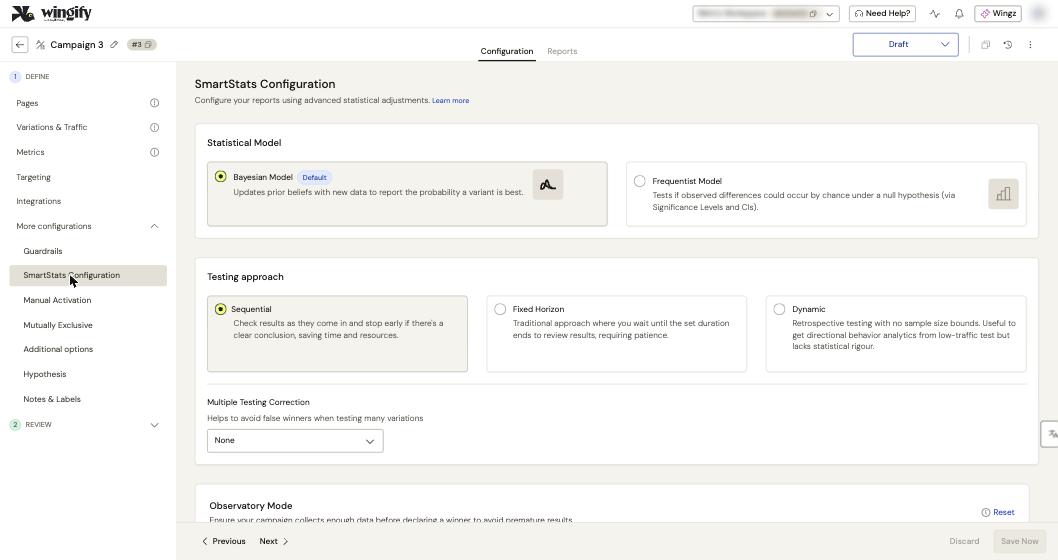
In the campaign's Configuration tab, expand More configurations and click SmartStats Configuration. You can also reach it from the Reports tab through the Statistical Configuration icon.
#2. Choose the Statistical Model
- Bayesian Model (default): reports the probability that a variation is better, worse or equivalent to the baseline.
- Frequentist Model: tests whether differences could occur by chance under a null hypothesis, and reports significance levels and confidence intervals.
The report columns differ: Bayesian shows Probability to be Better, Frequentist shows Significance Level. Pick the model your team knows how to read.
#3. Choose the Testing approach
- Sequential (default): checks results as data comes in and can stop early when there's a clear conclusion. It corrects for repeated looks, so you can check the report any time without inflating false positives.
- Fixed Horizon: calculates the sample size upfront and evaluates once that visitor count is reached. More robust to weekly traffic swings, but you must wait.
- Dynamic: no sample size bounds; checks for significance until you pause. Useful for directional data on low-traffic tests, with less statistical rigor.
#4. Set Multiple Testing Correction
The Multiple Testing Correction dropdown defaults to None. With two or more variations (excluding the baseline), select a correction method such as Bonferroni to keep the overall false positive rate under control. It raises the number of visitors needed, and it can be combined with Sequential testing.
#5. Adjust Observatory Mode
Scroll to Observatory Mode. Wingify won't compute statistics or declare a winner until all thresholds are met:
- Minimum Visitors per variation (default 500)
- Minimum Conversions per variation (default 1; raise it for rare conversions)
- Compute statistics after X days (default 0; set 7 to cover a full weekly cycle)
The fields start from your account defaults (Settings > Campaigns). Click Reset to go back to them, then click Save Now.
Tip: New to statistics? Keep the defaults: Bayesian model, Sequential approach, no correction, 500 minimum visitors.
#6. Add guardrail metrics
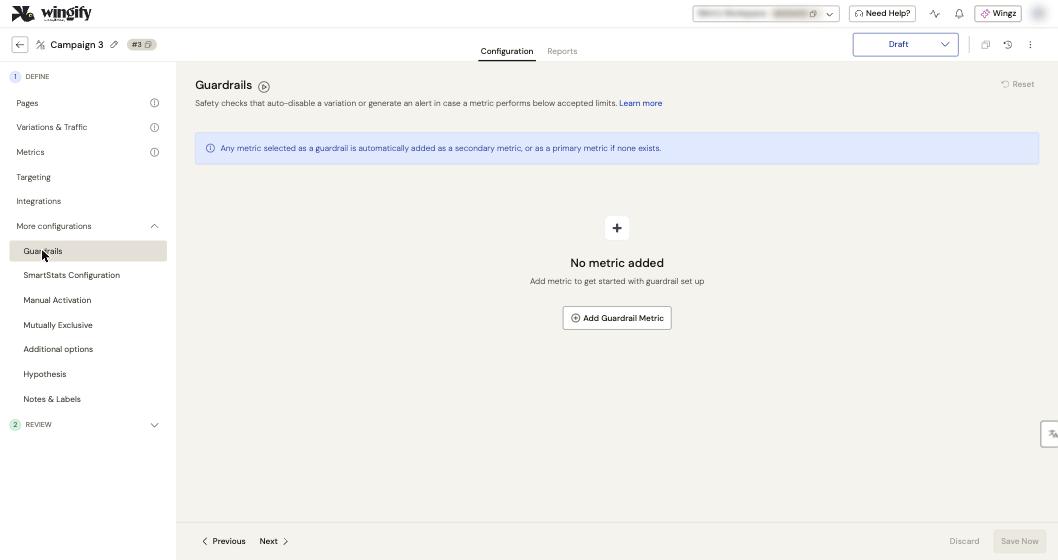
Click Guardrails under More configurations, then Add Guardrail Metric, and choose a business-critical metric (for example, checkout completion or revenue). A guardrail metric is automatically added as a secondary metric (or as the primary metric if none exists). You can also select Add as guardrail on a metric row in the Metrics step.
#7. Set what happens on a breach
In the metric's Advanced Settings > Guardrails Parameters, click Modify to choose the action: notify you, or disable the variation and notify you. You can also tune Minimum Detectable Reduction, Statistical Power and False Positive Rate (FPR). Keep thresholds realistic so guardrails aren't overly sensitive; Wingify recommends high power (95-99%) for critical guardrails like revenue.
#8. Review Additional options
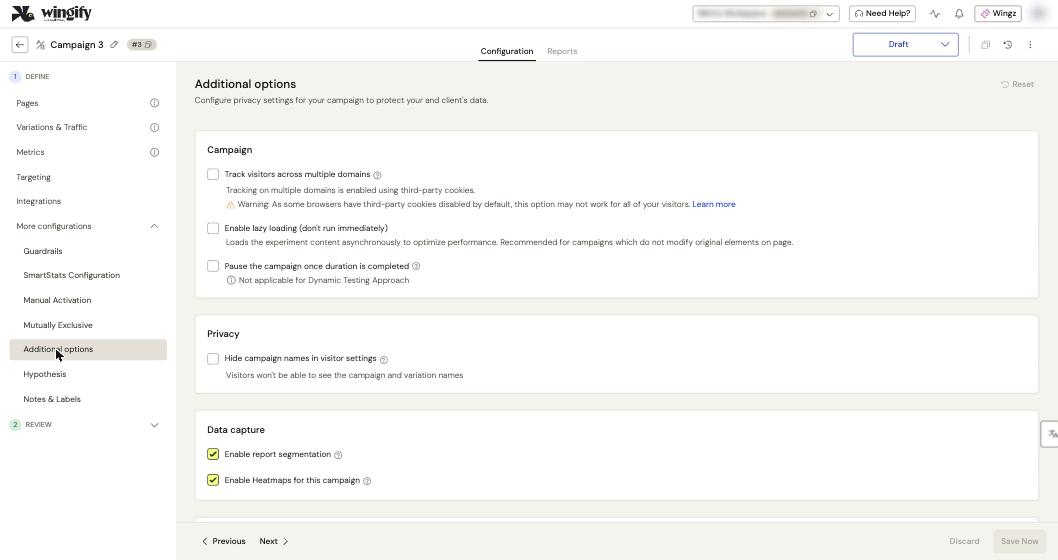
Open Additional options. Under Campaign, Pause the campaign once duration is completed pauses the test when it reaches the required sample size (not applicable with the Dynamic approach). Under Data capture, keep Enable report segmentation on so you can segment the report later. Click Save Now.
#Check that it worked
- REVIEW > Configuration summary lists your SmartStats Configuration and Guardrails.
- After launch, the report shows "Collecting minimum data for statistical calculations" until observatory thresholds are met.
- If a guardrail is breached, a Guardrails Alert appears in the report and in Experiment Vitals.
#Common questions
Can I switch from Bayesian to Frequentist after launch? No. The model can only be changed while the campaign is in Draft. Clone the campaign to use a different configuration.
Why did my required visitor count go up? Bonferroni correction tightens the threshold for each comparison, so each variation needs more data. This is expected.
A guardrail was breached but the variation is still running. What should I do? If it wasn't disabled automatically (for example, the action is set to notify only), disable the variation yourself and let the remaining variations get the traffic.
Why does my report say "Collecting Data"? The campaign is still in the observatory period. Statistics appear once the minimum visitors, conversions and days are reached.
#Learn more
- Achieve Accurate Campaign Results with SmartStats Configuration
- Configure Observatory Mode in Your Testing Campaigns
- Understanding Guardrails in A/B Testing
- Understanding Bonferroni Correction
- Understanding Sequential Testing Correction
- Configure Advanced Campaign Configurations
Help-center sources (8)
- Achieve Accurate Campaign Results with SmartStats Configuration
- Configure Advanced Campaign Configurations
- Configure Observatory Mode in Your Testing Campaigns
- Understanding Guardrails in A B Testing
- Set Up Metrics for Your Campaign
- Understanding Bonferroni Correction
- Understanding Sequential Testing Correction
- Understand Warnings Recommendations and Error Messages in Campaign Reports