
Predict results with a Synthetic A/B test
Get fast, directional feedback on a design change by having AI-generated personas compare screenshots of your control and variation.
The Wingify Guide can move a cursor on your screen inside the app and walk you through this, click by click (3 steps).
#When to use this
You have two mockups for a new pricing page and limited traffic. Before spending weeks on a live test, you want a quick signal on which design is clearer and more convincing. A Synthetic A/B test shows screenshots of your control and variation to AI-generated personas (for example, a price-sensitive shopper or a growth marketer), asks them your evaluation questions, and reports which version they prefer and why. Results usually arrive within minutes.
Note: Synthetic A/B is a directional validation tool. It doesn't replace a live test with real visitors, and Wingify has no published accuracy benchmark for how closely results match real-user behavior.
#Before you start
- Synthetic A/B requires the Wingz Advanced plan. On Wingz Core, Create test is locked, but you can still view completed reports.
- Prepare screenshots of the control and the variation in SVG, PNG or JPG.
- Remove or blur confidential data first: Wingify doesn't detect or blur sensitive content in uploaded images.
- Tests use Wingz Credits. For example, 20 existing personas cost about 50 credits; if the personas must be created first, about 80.
#Steps
#1. Create a test
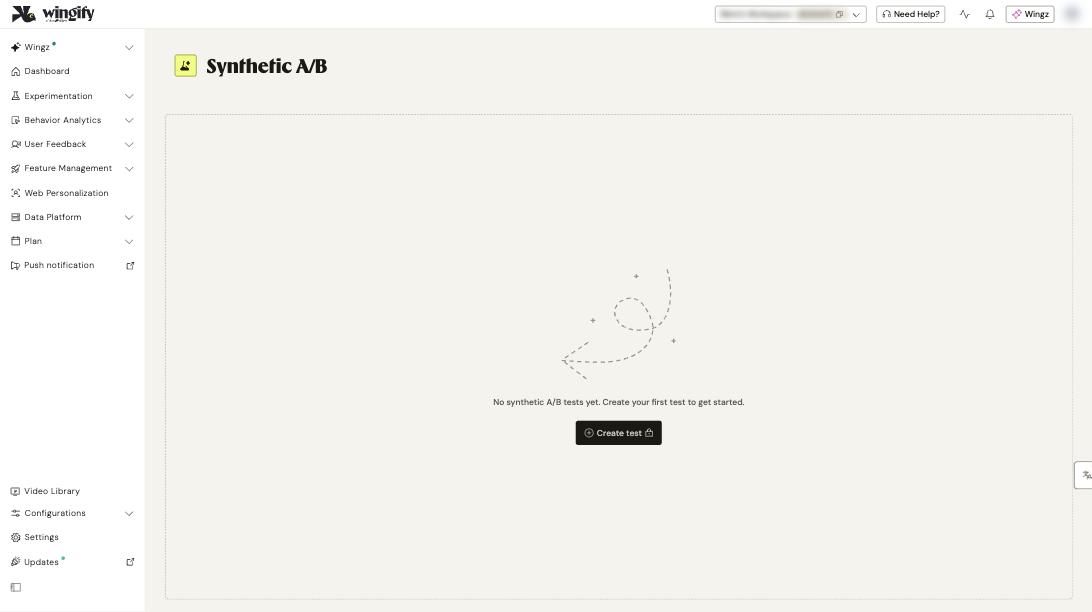
Go to Wingz > Synthetic A/B and click Create test.
#2. Upload screenshots
On the Screenshots tab, click Upload Control Screenshot and Upload Variation Screenshot (or drag and drop). Click Continue: Select Persona.
#3. Choose personas
Select one or more personas from Suggested Personas; there's no limit. To create your own, click Custom Persona, enter a Persona Name, Description and comma-separated Key Traits, then click Create. Click Continue: Add questions.
Tip: Reusing existing personas costs fewer credits than creating new ones.
#4. Add evaluation questions
Select recommended questions, such as What is your first impression of this page? or What would you click on first?, or click Custom Question to write your own. Wingz uses the answers to decide the winner, so choose the questions that matter most for your change. Click Continue: Select no of participants.
#5. Set the number of participants
Use the numeric input or + / −. A small count (1-25) suits quick validation; use more for higher-impact pages. More participants use more credits. Click Review Test Setup.
#6. Review and launch
On the Summary view, check screenshots, personas, questions and participant count. Click the pencil icon on a section to edit it; you can only go back to earlier steps from here. Click Launch Synthetic A/B Test.
Note: If you leave before launching, your progress is saved as a draft. The Progress column shows the next step (for example, "3 of 5 - Next: Set participants").
#Check that it worked
- On Wingz > Synthetic A/B, the Decision column shows the outcome (for example, "Variation wins, 97% confidence").
- Open the test to see the Analysis summary: the winner, how many personas chose it, why, and Key Findings.
- Click View Full Analysis for a side-by-side comparison, the preference split and each participant's feedback.
#Common questions
Can I turn a winning synthetic test into a live campaign? Not directly. Create a standard A/B test in Experimentation > Web Experimentation to validate it with real traffic.
Can I test more than one variation? No. Synthetic A/B supports one control and one variation only; multivariate and Split URL tests aren't supported.
Do personas simulate device or regional behavior? No. Personas can include nationality and residence, but these aren't used to model regional, device, OS or platform behavior.
How long are reports kept? Indefinitely. Completed tests stay in your account.