
Control how often surveys appear and how they look (User Feedback settings)
Set account-wide defaults for survey frequency, repeat behavior, response limits, language and branding, speed up survey writing with Survey Copilot, and read the survey report.
The Wingify Guide can move a cursor on your screen inside the app and walk you through this, click by click (7 steps).
#When to use this
Your team runs an NPS survey, an exit-intent survey on checkout and a concept test, all on the same site. Visitors shouldn't see three surveys in a week, every survey should look like your brand, and French visitors should get French buttons. User Feedback > Settings sets these rules once for the whole account; each new survey inherits them and can still override them.
#Before you start
- Design role or higher to change the global settings.
- Global settings apply only to surveys and concept tests created after you save them. Existing and cloned surveys keep their own settings.
- To serve translated surveys, Wingify must know each visitor's language, usually through a Data Platform user attribute (for example,
set_language).
#Steps
#1. Open User Feedback settings
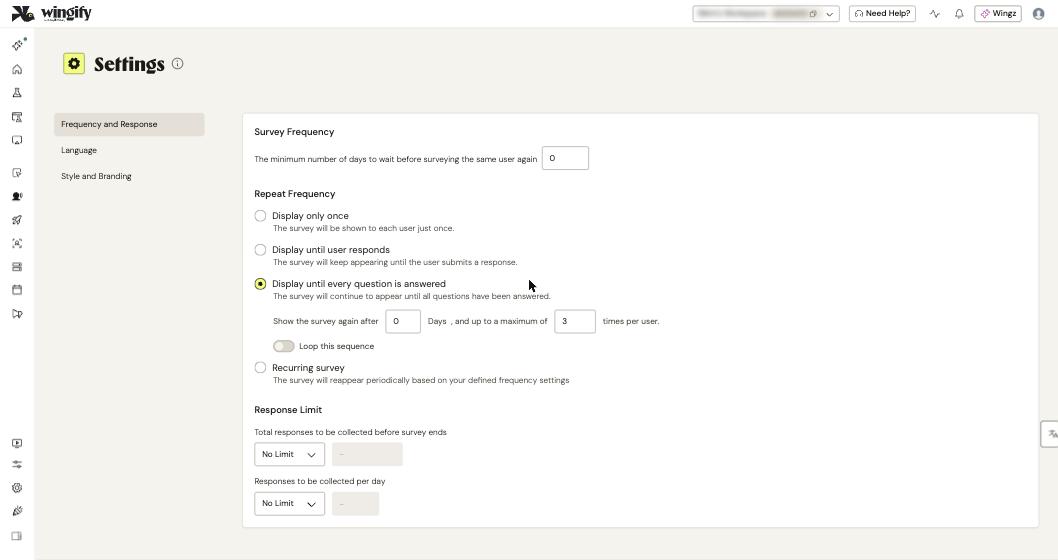
Go to User Feedback > Settings. The page has three tabs: Frequency and Response, Language and Style and Branding.
#2. Set the survey frequency
Under Survey Frequency, enter the minimum number of days to wait before surveying the same user again with any survey. For example, with 30, a visitor who sees a survey today sees no other User Feedback survey for 30 days. With 0, a survey can appear on every page load unless its repeat frequency prevents it.
#3. Choose the repeat frequency
Under Repeat Frequency, decide what happens after a user has seen a given survey:
- Display only once: once per user.
- Display until user responds: until the user submits a response.
- Display until every question is answered: until all questions are answered.
- Recurring survey: reappears periodically.
For the repeating options, set Show the survey again after N Days, and up to a maximum of N times per user. Turn on Loop this sequence to restart the cycle, which suits recurring feedback such as NPS.
#4. Cap the responses
Under Response Limit, set Total responses to be collected before survey ends and Responses to be collected per day to a maximum, or keep No Limit. If both are set, the survey stops when either is reached; a daily cap pauses the survey until the next day. Link surveys don't support daily limits or looping.
#5. Set the language defaults
On Language, pick the Default survey language for system text such as the Next and Submit buttons and validation messages. Optionally add Translation language entries to preload translations into new surveys; review them while building each survey. An English version of surveys and responses is always available.
#6. Set style and branding per platform
On Style and Branding, configure the Website, Mobile Apps and Link tabs separately; a change on one tab doesn't affect the others. Web surveys support the widest set of controls:
- Web Layout: initial state Open or Closed, and Position (bottom-right by default; right, left or center).
- Theme: a preset such as White, Purple Berry or Nightly, or New Theme built from a Base Theme with Container CSS, Content CSS and Content JS.
- Full width Button and Show Progress Bar.
- White label: switch off Show Wingify Branding and Upload custom branding image (PNG, JPG or GIF, max 320 × 100 px).
Tip: Themes created in Configurations > Asset Hub are also available to surveys. See Reuse pages and creative assets.
#7. Override per survey when needed
In each survey, the Design tab and the Advanced Options tab start from these defaults. Change them there for one survey only. Advanced Options also offers mutually exclusive groups (web only), scheduling (web and link), hiding campaign names, a redirect URL (link only), and notes and labels.
#8. Draft questions faster with Survey Copilot (Early Access)
Survey Copilot generates questions from a predefined goal (for example, support experience evaluation) or a custom one such as "Collect Feature Requests". Regenerate the set or rewrite single questions until they fit. Contact your account manager for access.
#9. Read the survey report
Go to User Feedback > Surveys and select a Running or Ended survey, then View Report. The report has three views:
- Overview: Displayed, Attempted and Completed counts, charts for choice questions and word clouds for free text. In Early Access, Generate report summary adds an AI summary, key insights and suggested actions once enough responses are collected.
- Respondent View: each respondent's answers, grouped by Attempts if they took the survey more than once.
- Question View: aggregated answers per question. Click the Session Recordings icon next to an answer (for example, a low NPS score) to watch those visitors' sessions.
Filter any view with Date Filter (last 30 days by default) and Visitor Segment.
#Check that it worked
- Create a new survey and check that its Design and Advanced Options tabs show your new defaults.
- Preview the survey in a fresh browser, answer it, then reload: it should follow the repeat frequency you chose.
#Common questions
I changed the global settings but an existing survey didn't change. Global settings apply only to surveys created afterwards. Update the survey manually or recreate it; cloned surveys inherit the original survey's settings.
What's the difference between Attempted and Completed? Attempted includes anyone who interacted with the survey, even if they left after one question. Completed means the visitor answered every question and clicked Submit.
Is a response saved if the visitor closes the survey early? Yes. Each answer is recorded when the visitor clicks Next.
Why is there no recording for some responses? Session Recordings are sampled, so not every respondent's session is recorded. This works only for web surveys.