
Track visitors across multiple domains (cross-domain tracking)
Count a visitor who moves between two of your domains as one person, in Behavior Analytics (account setting) and in your test campaigns (campaign setting).
The Wingify Guide can move a cursor on your screen inside the app and walk you through this, click by click (9 steps).
#When to use this
Your store runs on mystore.com, but checkout happens on secure-checkout.com. Without cross-domain tracking, Wingify sees two different visitors. A test on the store never gets credit for purchases, and a session recording stops at the "Buy now" click. Cross-domain tracking links the two visits to one visitor. You switch it on in two independent places:
- Behavior Analytics (session recordings, heatmaps, form analytics, metric reports, funnels): one account-wide checkbox.
- Test campaigns (A/B, Split URL, Multivariate): one checkbox per campaign.
#Before you start
- Different domains only. Subdomains of the same root domain (blog.example.com, shop.example.com) are handled automatically. You don't need this setting for them.
- The same SmartCode (same account ID) must be installed on every domain, on all pages involved. See Install the SmartCode.
- Settings > Privacy Center > Visitor Tracking Storage Location must be Cookies. Cross-domain tracking isn't supported with Local Storage.
- It can't be used if you self-host campaign JavaScript (Settings > Campaigns > Self-Host campaign JS).
- The Behavior Analytics setting is available on the Pro and Enterprise plans.
Warning: Cross-domain tracking relies on third-party cookies. Chrome, Safari and Firefox block them by default in many configurations. Safari's Intelligent Tracking Prevention (ITP) blocks them outright, so for those visitors each domain still counts as a new visitor. This is a browser restriction that Wingify can't override.
#Steps
#1. Open Behavior Analytics Settings
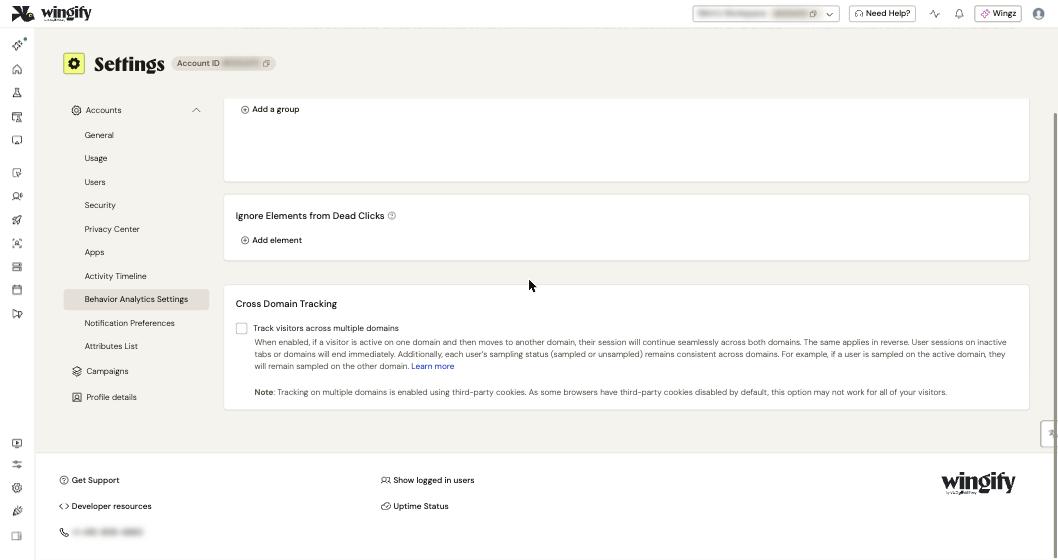
In the left sidebar, click Settings, then Behavior Analytics Settings under Accounts. Scroll down past Sampling Groups and Ignore Elements from Dead Clicks to Cross Domain Tracking.
#2. Turn on cross-domain tracking for Behavior Analytics
Select Track visitors across multiple domains, then click Save. From then on, when a visitor moves from one of your domains to another:
- their session continues as a single session and a single recording;
- funnel steps on different domains no longer show a false drop-off;
- their sampling status (sampled or unsampled) stays the same on both domains;
- sessions on inactive tabs or domains end immediately.
No extra code is needed on your website. The setting isn't retroactive: data collected before you enabled it stays split.
#3. Open the campaign's Additional options
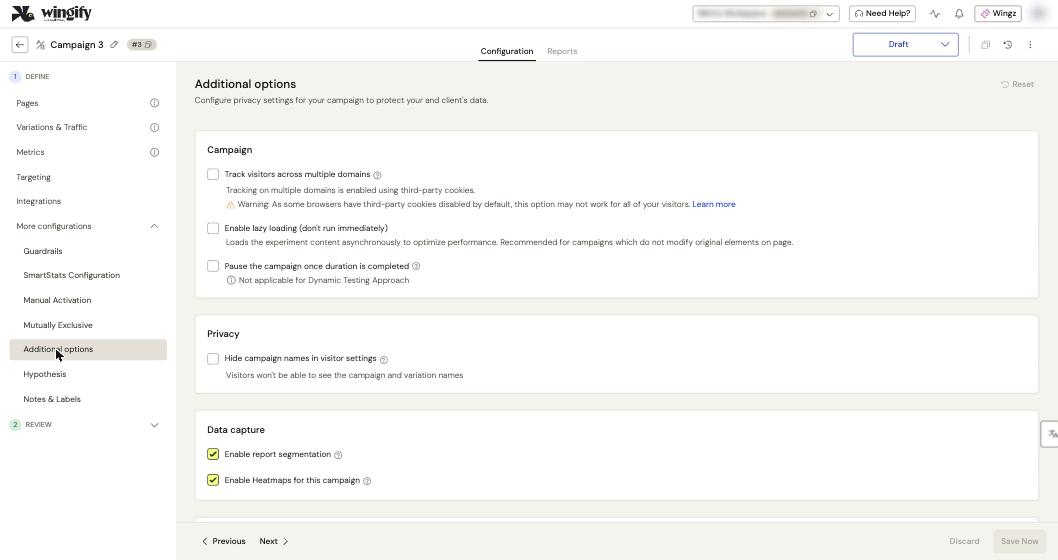
For a test, open the campaign in Experimentation > Web Experimentation. On the Configuration tab, expand More configurations and click Additional options.
#4. Turn on cross-domain tracking for the campaign
In the Campaign section, select Track visitors across multiple domains, then click Save Now. Enable it when:
- your metric (goal) page is on another domain than the test page, for example a purchase on secure-checkout.com;
- your campaign pages are on several domains;
- the control and variation URLs of a Split URL test are on different domains. Here it's required.
If you define the campaign pages with URL matches in Pages and they span several domains, Wingify detects it and asks you to confirm enabling cross-domain tracking.
Warning: Don't enable it if your metric is a click on a link pointing to another domain, or a form submit whose action URL is on another domain.
Repeat this step for every campaign that spans domains. The campaign setting is separate from the Behavior Analytics one.
#5. (Optional) Keep tracking when third-party cookies are blocked
On Data Platform accounts (Pro or Enterprise plan), you can pass the visitor's identity in the link to the second domain. On the page that links to the other domain, call window.Wingify.getCrossDomainInfo() (window.VWO.getCrossDomainInfo() for accounts created before June 14, 2026). Append its q key and d value as a query parameter to the destination URL:
link.setAttribute('href', 'https://secure-checkout.com/?' +
  window.Wingify.getCrossDomainInfo().q + '=' + window.Wingify.getCrossDomainInfo().d);
Another option is a custom visitor identifier (Settings > Campaigns > Visitor identifier). It works across domains as long as the same identifier value is available on all of them. See Exclude internal traffic and manage visitor data.
#Check that it worked
- Behavior Analytics: open a new incognito window. Visit your first domain and click around. Then follow a link to your second domain and interact there. After a few minutes, open Behavior Analytics > Session Recordings: the whole journey should appear as one recording. Use a browser that allows third-party cookies, or the test will fail for browser reasons.
- Campaigns: open Live Preview from the campaign's REVIEW menu and walk from one domain to the other. In your browser's developer tools, check that the cross-domain cookies are created:
_vwo_uuid_{CAMPAIGNID}for a campaign and_vwo_uuid_cdfor Behavior Analytics (see Cookies Stored by Wingify for the exact names on your account). Also check that the/ping_tpc.phpor/infonetwork calls succeed. - Expect your unique visitor count to drop a little. That's the sign it works: one person on two domains is now counted once. Quota counting follows the same rule.
#Common questions
Do I need this for subdomains? No. Wingify already treats www.example.com and test.example.com as the same site because they share the root domain. Just install the SmartCode on every subdomain.
Why are some sessions still split? The most common causes are: the SmartCode is missing or uses a different account ID on one domain; the visitor's browser blocks third-party cookies; or the session started before you enabled the setting.
Does it work in Safari? Not by default. Safari blocks third-party cookies (ITP), and the help center states that tracking across multiple domains isn't supported there. Visitors can only be linked if they turn off Prevent cross-site tracking themselves. Use the getCrossDomainInfo() link method or a custom visitor identifier to cover these visitors.
What happens if I turn it off again? Wingify returns to default behavior: each domain counts a new visitor. Data merged while the setting was on stays merged.
Can I use it together with self-hosted campaign files or local storage? No. Both are incompatible with cross-domain tracking.
#Learn more
- Enable Cross Domain Tracking for Wingify Behavior Analytics
- How to Enable Tests to Run Across Multiple Domains in Wingify?
- Can I Run Wingify Tests on Sub-domains?
- Wingify Troubleshooting: Resolving ITP Issues in Safari
- Cookies Stored by Wingify
Help-center sources (10)
- Enable Cross Domain Tracking for Wingify Behavior Analytics
- How to Enable Tests to Run Across Multiple Domains in Wingify
- Configure Advanced Campaign Configurations
- Can I Run Wingify Tests on Sub domains
- Wingify Troubleshooting Resolving ITP Issues in Safari
- Cookies Stored by Wingify
- Wingify Privacy Center
- Host Wingify JavaScript Files on Your Server
- Visitor Counting Logic in Wingify
- Configure Custom Visitor Identifiers in Wingify