
Test combinations of changes with a multivariate test
Create a multivariate test that changes several sections of one page and finds the combination that converts best.
The Wingify Guide can move a cursor on your screen inside the app and walk you through this, click by click (6 steps).
#When to use this
You want to improve a landing page and have ideas for both the headline and the hero image, but you don't know which combination works best. A multivariate test (MVT) lets you create variations for several sections of one page; Wingify then generates every possible combination and measures which one converts best, and how much each element contributes.
#Before you start
- The page gets high traffic and enough conversions. The number of combinations grows multiplicatively, and each combination needs its own share of visitors.
- The Wingify SmartCode is installed on the page.
- You have time: more combinations take longer to reach a conclusion. If your estimate is too long, split the idea into several A/B tests instead.
#Steps
#1. Estimate how many combinations you'll get
Total combinations = variations of element A x variations of element B x ... For example, one alternative headline and one alternative image (each with its original) give 2 x 2 = 4 combinations:
- Original headline + original image
- New headline + original image
- Original headline + new image
- New headline + new image
Keep the number of sections and variations small.
#2. Create a Multivariate test campaign
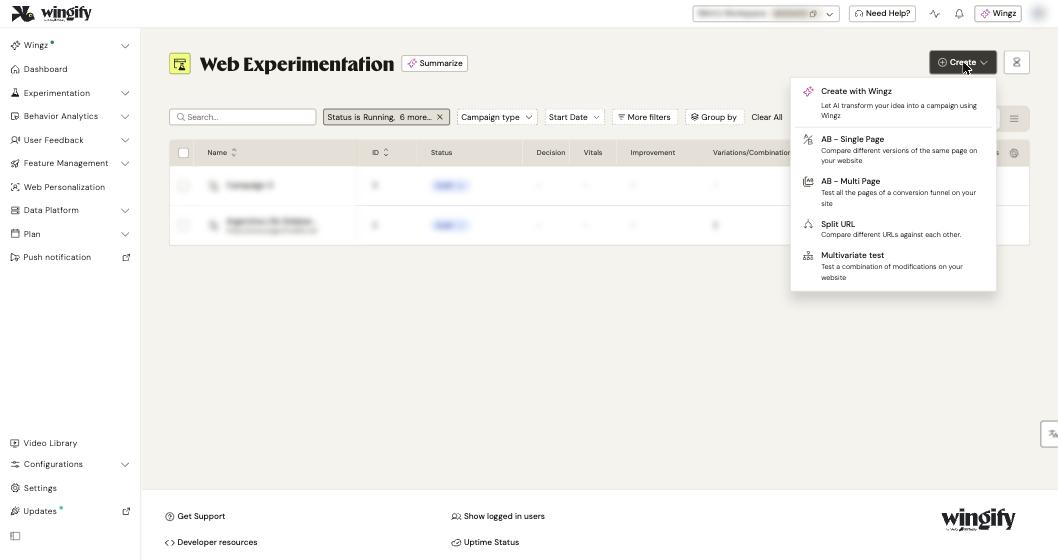
Go to Experimentation > Web Experimentation, click Create and select Multivariate test.
#3. Define the page in Pages
On Pages, under Include pages where, enter the page URL with URL matches (or another matching rule), add Exclude pages if needed, and validate a URL in URL Validator. Click Next.
#4. Create section variations in the Visual Editor
On the combinations step (the help center calls it Combinations & Traffic):
- Enter the page URL in Editor URL and choose Desktop, Mobile or Tablet in View mode.
- Click Open Visual Editor.
- Select a section of the page (for example, the headline) and create its variations. Each set of changes to that section becomes a variation of the section.
- Select a different section (for example, the hero image) and create its variations.
Each time you select a new element, Wingify creates a new section; further edits to the same element stay in that section.
Note: In a multivariate test, the Visual Editor does not offer Edit Code or Add element. The only way to add several changes to one variation is custom JS/CSS.
#5. Check the combinations table
Return to the combinations screen. Wingify fills the Combinations table with every combination of your section variations. The Control row is the original version of all sections. Set the traffic split and Traffic Allocation as for an A/B test, then click Next.
#6. Add a primary metric
On Metrics, click Add under Primary metric and select or create a metric. When you create one, choose Unique visitors or First value of an event property under Metric will calculate: Event totals is not available for multivariate tests. See Choose the metrics that decide your test.
#7. Configure Targeting, review and start
Set up Targeting (the defaults target All Traffic on Page Viewed), check REVIEW > Configuration summary and Live Preview, then click the status dropdown (it shows Draft) and select Start.
Warning: Finalize everything before you start. You can't add custom changes once the test has been started or paused, and you can't delete a variation after start (only disable it).
#Check that it worked
- Use Live Preview to force each combination and confirm the right sections change together.
- After launch, the Reports tab lists combinations with their visitors and conversions.
- After the test has run for about a week, the Estimated Duration Calculator (available only for multivariate tests) shows how long the test needs, based on the data seen so far.
#Common questions
How long should a multivariate test run? It depends on your existing conversion rate, the minimum improvement you want to detect, the number of combinations (including control) and your monthly visitors. Use the Wingify test duration calculator or the in-app estimator to get an estimate.
My test is taking too long. What can I do? Reduce the number of combinations, or break the multivariate test into separate A/B tests, each testing one element.
How does Wingify keep a visitor on the same combination? A combi cookie records the combination a visitor was assigned on their first visit, so they keep seeing it on later visits.
When should I avoid multivariate testing? When your page has low traffic or you have little time: more combinations need more traffic and a longer run.