
Compare two different URLs with a Split URL test
Set up a Split URL campaign that redirects part of your visitors from the control URL to a redesigned page and measures which converts better.
The Wingify Guide can move a cursor on your screen inside the app and walk you through this, click by click (5 steps).
#When to use this
Your team built a completely redesigned pricing page at /pricing-new and you want to know whether it converts better than the current /pricing. A Split URL test keeps some visitors on the original (control) URL and redirects others to the variation URL, then compares conversions. Use it for major redesigns, different flows (for example single-page vs. multi-page checkout) or any page hosted on another URL.
#Before you start
- Both the control and variation pages are live, and the Wingify SmartCode is installed on both. Without the SmartCode on the variation URL, Wingify still tracks visits but not conversions.
- If you use a URL pattern, every control page has a matching variation page; otherwise visitors hit a 404.
- Neither URL has its own internal redirect: the split test does not work correctly if they do.
- No other Split URL test is running on the same control URL.
#Steps
#1. Create a Split URL campaign
Go to Experimentation > Web Experimentation, click Create and select Split URL. Wingify opens the draft campaign on the Configuration tab.
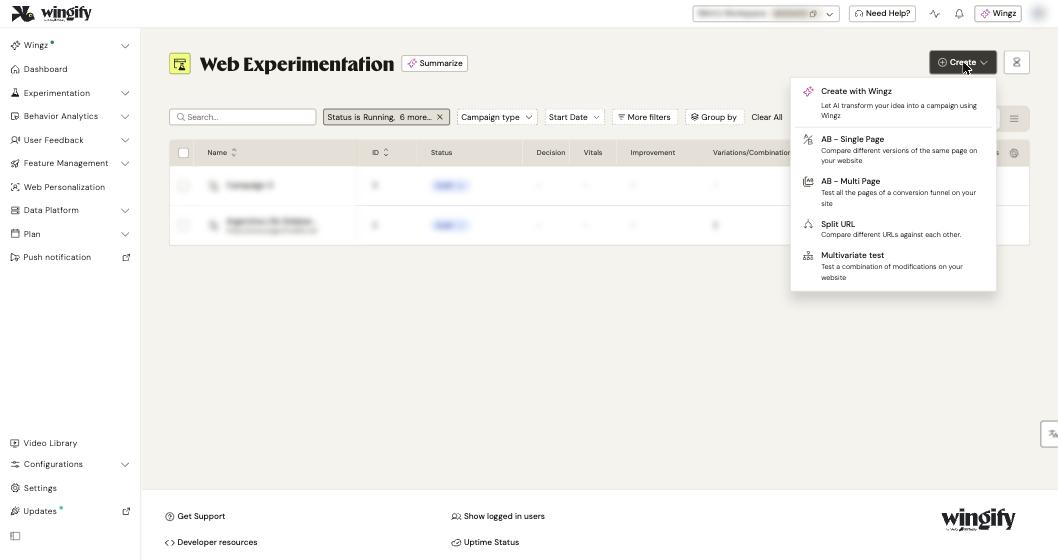
Note: Split URL tests skip the page-URL setup used by A/B tests. You define all URLs in the variations step.
#2. Enter the control URL
In Variations & Traffic, the Control row is pre-populated. Click its URL field and enter your existing page URL, then choose how Wingify matches it in the Page URL dropdown:
- URL matches: exact match for one URL. Only this option offers Redirection Settings (Exclude Query String, Exclude Fragments) to keep or strip parameters and fragments during the redirect.
- URL matches pattern: wildcards (
*) for many similar pages. - URL matches regex: Wingify detects capture groups and assigns tokens (
$1,$2...) you can reuse in the variation URL. - URL matches regex pattern: regex matching without tokens.
- Custom Redirection: a JavaScript function that builds the variation URL at runtime.
#3. Enter the variation URL
In the Variation row, enter the destination URL. It must start with http:// or https://. If you used regex capture groups for the control, reuse the tokens, for example https://example.com/$1/new-products/$2.
Warning: Never put regex syntax in the variation URL. It is a redirect destination, not a matching rule, and visitors could land on broken pages.
#4. Set the preview URL and exclusions
- In Enter URL of the page to create Previews, enter a URL Wingify uses to generate variation screenshots and heatmap reports.
- Enable Exclude some URLs from the campaign to stop specific pages from triggering the redirect. If the variation URL also matches the control pattern, exclude it explicitly to avoid a redirect loop.
- Under test campaign setup, enter any URL and click Validate to confirm it matches the control rule and see the captured token values.
#5. Decide the traffic split
Use the Traffic split dropdown and the Traffic Allocation slider as in any A/B test.
Tip: Wingify's best practice is to give the Control 0% of traffic and add the control page as one of the named variations. All visitors then go through the same redirect, which removes the latency difference between groups.
#6. Add metrics and targeting
Click Next to go to Metrics and add a primary metric (for example, a page visit on the order confirmation page), then configure Targeting. See Choose the metrics that decide your test and Target the right visitors.
#7. Review and start
Open REVIEW, check Configuration summary and Live Preview, then click the status dropdown (it shows Draft) and select Start. See Preview, QA and launch your campaign.
#Check that it worked
- Open the control URL in Live Preview for the variation: you should be redirected to the variation URL.
- In Variation Screenshots, confirm each version renders correctly.
- After launch, the Reports tab shows visitors for both control and variation. Visitors join the test only when they first land on the control URL.
#Common questions
Why do visitors get stuck in a redirect loop? If a link on the variation page leads back to the control URL, the visitor is redirected again. Add a custom segment such as Referring URL does not contain your variation URL (or domain), and set targeting checks to run every time. Note that such segment conditions are then also checked on metric URLs.
Why does Google Analytics show double page views on the control? The control page loads before the JavaScript redirect, so GA can count it twice. Wingify documents an event-based redirection method to avoid this, and a _wingify_referrer cookie to recover the original traffic source.
Can I test many pages with one Split URL test? Yes. Use URL matches pattern for both control and variation, and a negative regex in the exclusions to limit it to specific pages. For URLs without a common pattern, use a custom URL (contact Wingify Support for help).
Can I use Manual Activation? No. Manual campaign activation is not allowed for Split URL tests.
Will the redirect hurt SEO? Wingify redirects with JavaScript rather than a 302 redirect. To avoid duplicate content, add a rel="canonical" link on the variation page pointing to the control URL.
#Learn more
- Introduction to Split URL Testing
- Create and Configure Variations and Traffic (Split URL section)
- How to Set Up a Split URL Test for Multiple Pages in Wingify?
- Troubleshooting: Split URL Test Redirecting in Loop
- How to Implement Event-based Redirection for Split URL Tests
- Will Wingify Negatively Impact My SEO Ranking?
Help-center sources (9)
- Introduction to Split URL Testing
- Create a Campaign in Wingify
- Create and Configure Variations and Traffic
- Set Up Pages for Your Campaign
- How to Set Up a Split URL Test for Multiple Pages in Wingify
- Wingify Troubleshooting Split URL Test Redirecting in Loop
- Manual Campaign Activation in Wingify
- How to Decide Which Wingify Testing Type Best Suits You
- Will Wingify Negatively Impact My SEO Ranking