
Update your profile and notification preferences
Edit your name, email, language, password and passkeys, and choose which Wingify notifications you get by email, in-app or in Slack.
The Wingify Guide can move a cursor on your screen inside the app and walk you through this, click by click (5 steps).
#When to use this
You've just joined your company's Wingify account and want your name and role to show correctly, the interface in your language, and fewer emails. For example, you want a Slack message when a campaign is paused, not an email for every change. You manage both in Settings: your personal details in Profile details, and your alerts in Notification Preferences. Every user can edit their own profile, whatever their role.
#Before you start
- You're logged in to Wingify.
- To get Slack notifications, you need access to the Slack channel you want to use.
#Steps
#1. Open Profile details
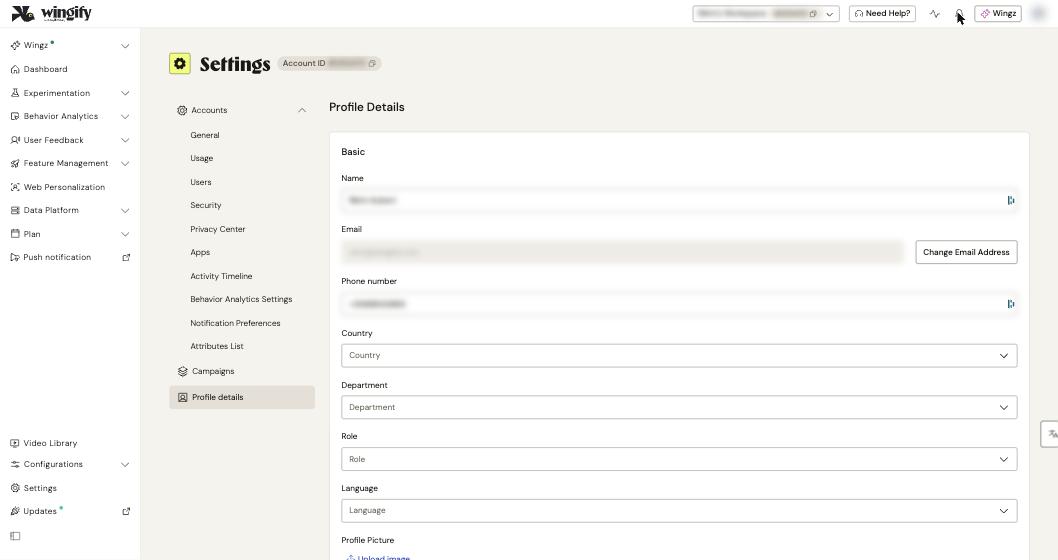
In the left sidebar, click Settings, then Profile details (at the bottom of the Settings menu).
#2. Update your basic information
Under Basic, edit:
- Name and Phone number
- Country
- Department and Role. If yours isn't listed, select Others and type it in the field that appears.
- Language: the language of your Wingify interface. Wingz Chat also replies in your account language by default.
You can also upload a profile picture. Click Save to apply your changes.
#3. Change your email address
Click Change Email Address next to Email, then click Send Security Token. Enter the 8-digit token sent to your current address (valid 10 minutes; up to 10 tokens per 24 hours). Enter and confirm the new address, then click Confirm. After the change, you can't log in with the old address.
Note: If the new address is already used by another Wingify account, contact Wingify Support.
#4. Change your password or add a passkey
Further down Profile details:
- In Change Password, enter your Current Password, then your New Password twice, and click Save.
- In Passkey, click Add your first passkey to sign in with your fingerprint, face or device PIN instead of a password. Only add passkeys on devices you control.
- In Security, you can also enable two-factor authentication. See Secure your account.
Note: If your company uses single sign-on, you sign in through SSO and don't need a Wingify password.
#5. Choose your notifications
In the Settings menu, click Notification Preferences. For each category, turn notifications on or off and pick the channels:
| Category | You're notified when... |
|---|---|
| Campaign Updates | a campaign is started, paused, archived or trashed |
| User Management | users are added, deleted or change roles |
| Learnings | a learning is added or updated |
| Wingz activation | Wingz generates automated insights |
| Websites and Apps | unregistered websites are detected or archived |
Channels are Email (your registered address), In-App (the bell icon, Open notifications, in the header) and Slack. You can select only one Slack channel.
#Check that it worked
- Reload Profile details: your changes are shown. After a language change, the interface uses the new language.
- After changing your password, log out and log back in with the new one.
- Next time a campaign changes status, check that the notification arrives only in the channels you selected. Look at the bell icon in the header for in-app notifications.
#Common questions
Can I change my email address myself? Yes, with Change Email Address and a security token sent to your current address. Admins can edit other users' names and roles, but only you can change your email.
Why don't I get alerts about login attempts or account setting changes? Those security alerts are set by an Admin in Settings > Security > Alerts, and only go to selected admins. They aren't part of your personal notification preferences.
Can I send notifications to several Slack channels? Not currently. You can select only one Slack channel.
I lost the device with my passkey. What now? Sign in with another method, such as your password or SSO. Then delete the lost device's passkey in Profile details and create a new one.