
Configure privacy & GDPR settings (IP anonymisation, cookies vs local storage, DNT, consent)
Decide how Wingify stores visitor IPs, locations and tracking data, respect Do Not Track, exclude internal traffic, and link the SmartCode to your cookie consent banner.
The Wingify Guide can move a cursor on your screen inside the app and walk you through this, click by click (6 steps).
#When to use this
Your legal or privacy team has asked how Wingify handles visitor data under GDPR. For example, they want IPs stored in anonymized form, city-level location switched off, visitors who send Do Not Track left alone, and nothing tracked until a visitor accepts your cookie banner. Most of these choices are in Settings > Privacy Center. Consent handling is configured on your SmartCode in Websites and Apps.
Note: Whether you need consent before running Wingify is a legal decision. Consult your legal counsel. Some customers classify Wingify's cookies as strictly necessary, others require consent first.
#Before you start
- You need Admin access (main workspace) to change the Privacy Center, storage location and IP exclusions.
- Know which cookie consent manager your website uses, if any.
#Steps
#1. Open the Privacy Center
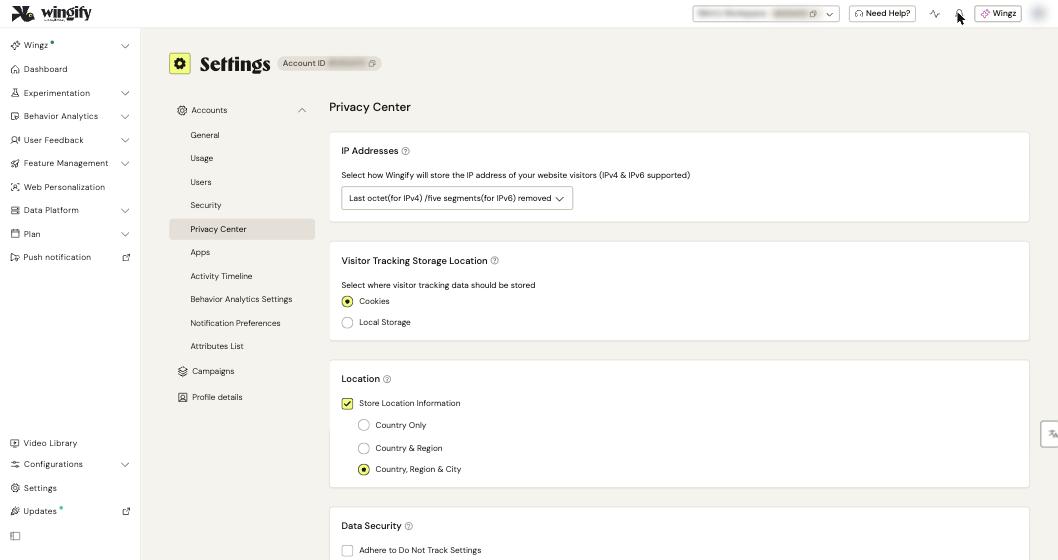
In the left sidebar, click Settings > Privacy Center.
#2. Choose how visitor IP addresses are stored
Under IP Addresses, use the dropdown to choose how Wingify stores your visitors' IPs. By default, the last octet of IPv4 addresses (for example, 34.107.218.251 becomes 34.107.218.0) and the last five segments of IPv6 addresses are removed. You can also choose not to store IPs at all. IP addresses will then be missing from the Detailed Report download.
This setting only affects storage. Wingify still uses the IP to detect location and traffic.
#3. Pick cookies or local storage
Under Visitor Tracking Storage Location, select Cookies (default) or Local Storage. When you switch, Wingify migrates existing visitor tracking data, including each visitor's UUID, to the new location.
Warning: Cross-domain tracking isn't supported with Local Storage.
#4. Limit stored location data
Under Location, keep Store Location Information selected and choose Country Only, Country & Region, or Country, Region & City. You can also clear the checkbox to store no location. Geo-targeting in campaigns keeps working either way. Location filters in reports only work when this option is enabled.
#5. Respect Do Not Track and anonymize URLs
Under Data Security, select Adhere to Do Not Track Settings to stop tracking, and stop setting cookies for, visitors whose browser sends Do Not Track. This option is off by default, and it doesn't work if you self-host Wingify files. The same area lets you configure the SameSite cookie attribute (for sites loaded in iframes) and Anonymize Query Parameters. By default, emails, phone numbers, passwords and similar values in URLs are replaced with wingify_anonymized. Use the blacklist and whitelist fields to adjust this.
#6. Exclude internal traffic
Scroll to IP Addresses to Exclude. Choose Multi Line or Regex (one IP or pattern per line) or Range (IP Start and IP End), then click Add to list. A plain IP entry is a "contains" match: 8.8.8.5 also matches 18.8.8.5. Use ^8.8.8.5$ for an exact match. Excluded visitors still see variations, but their visits aren't counted in reports.
Click Save when you change settings on this page.
#7. Connect the SmartCode to your cookie consent banner
Go to Configurations > Websites and Apps, open your website and, on the Code tab, select Enable Cookie Consent. Then:
- In Cookie Consent Manager, select your consent tool, Custom (you add code in the Wingify editor), or Other (you add code on your website).
- To apply consent to Web Experimentation, Web Personalization and Web Rollout as well as Behavior Analytics, turn on Enable Advance Cookie consent options.
- Under Manage Wingify behaviour when cookie consent is pending, choose Completely Block Wingify, Partially Block Wingify or Do not block Wingify.
Also allowlist Wingify's first-party cookies in your consent manager.
#Check that it worked
- Reload the Privacy Center and confirm that your selections are saved.
- On your website, open a fresh browser session, decline or ignore the banner, and check in developer tools that no Wingify cookies are set when you chose to block. Then run the Debugger (Check that SmartCode works). Its Cookie Consent Failure Check flags consent issues.
#Common questions
Where is our visitor data stored? Visitor data is stored in the data center assigned to your account: US (Northern Virginia), EU (Belgium) or India. You can see it under Settings > General > Data Region. The field is read-only; to change it (paid plans only), contact Wingify Support.
Can a visitor opt out of Wingify? Yes. Visitors can use the opt-out page at wingify.com/opt-out, and website owners can call the opt-out API from their own consent logic.
Does Wingify collect personal data? Wingify says it doesn't collect personally identifiable information, and its cookies don't store PII. URL anonymization adds a further safeguard.
Can I load Wingify through GTM after consent? It's possible, but not recommended. Tag managers can cause flicker and timeouts. Use the built-in cookie consent settings instead.