
Connect Wingify to Claude, ChatGPT or Gemini with the Wingify MCP Server
Add the Wingify MCP Server to your AI tool as a custom connector, approve access to your account, and ask questions about your campaigns, heatmaps and session recordings in plain language.
The Wingify Guide can move a cursor on your screen inside the app and walk you through this, click by click (4 steps).
#When to use this
You want answers about your experiments without clicking through reports. For example, you want to ask Claude "Which campaigns in the last 3 months have no winner?", or ask ChatGPT for insights from the heatmap of your pricing page. The Wingify Model Context Protocol (MCP) server lets external AI tools read your live Wingify data. With the right permission, they can also create and manage A/B and Split URL tests.
#Before you start
- You have a Wingify login with access to the account you want to connect.
- You use an AI tool that supports remote MCP servers: Claude, ChatGPT (with Developer mode), Gemini CLI or Gemini Enterprise. Microsoft Copilot Studio also supports MCP. The standard Microsoft Copilot doesn't.
- You don't need an API token. The MCP server uses OAuth 2.0 with Dynamic Client Registration, so you sign in and approve access in your browser.
- MCP requests use the same Wingz credit pool as Wingz features. Only data retrieval is charged, because the AI tool does the model processing. See Manage Wingz AI credits.
#Steps
#1. Open the Wingify MCP Server tab
Scroll to the footer of any Wingify page and click Developer resources. On the Developer Dashboard, open the Wingify MCP Server tab. It shows Your Wingify MCP Server URL, links to the Claude and ChatGPT setup guides, and a click here link to the Gemini Enterprise credentials.
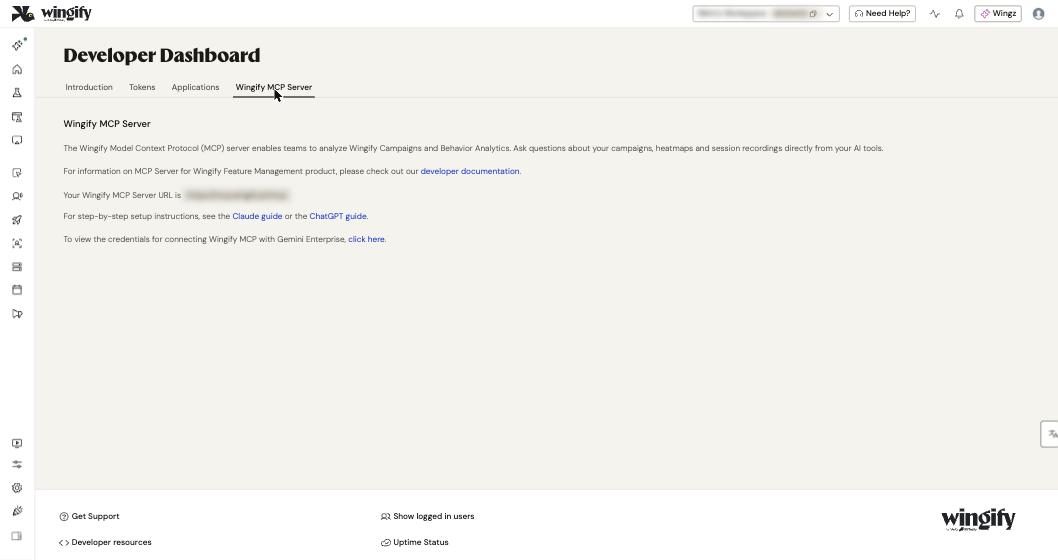
The URL depends on the region of your account:
| Region | MCP Server URL |
|---|---|
| Global | https://mcp.wingify.ai/mcp |
| Europe | https://mcp-eu.wingify.ai/mcp |
| Asia | https://mcp-as.wingify.ai/mcp |
Note: This server covers campaigns and Behavior Analytics. Feature Management has a separate MCP server for IDEs such as Cursor and VS Code. See the developer documentation.
#2. Add Wingify as a custom connector in your AI tool
Follow the steps for your tool:
- Claude (claude.ai): open your profile at the bottom left, then Settings > Connectors > Add custom connector. Enter the name Wingify, paste the URL into Remote MCP server URL and click Add.
- ChatGPT: first turn on Settings > Apps > Advanced settings > Developer mode. Then go to Settings > Apps > Create app. Enter a Name and Description, paste the MCP server URL, set Authentication to OAuth, select I understand and want to continue and click Create.
- Gemini CLI: run
gemini mcp add --transport http wingify <your MCP Server URL>. Then startgeminiand run/mcp auth wingify. This needs a browser on your machine, so it won't work over SSH without X11 forwarding or in a headless container. - Gemini Enterprise: on the Wingify MCP Server tab, click click here to view the credentials (MCP Server URL, Authorization URL, Token URL, Client ID, Client Secret, Scopes). In the Gemini Enterprise console, go to Connected data stores > + New data store > Add MCP server and paste them. Then click Verify OAuth.
Warning: ChatGPT's Developer mode allows unverified connectors that can modify or erase data. Only add MCP servers you trust.
#3. Approve access on the Wingify authorization screen
Your AI tool redirects you to Wingify. Select the account in Select an account, then choose a Permission level:
- Browse: read-only access to data, recordings, heatmaps, and A/B, Split URL and Multivariate tests.
- Design: can also create new A/B or Split URL tests.
- Publish / Admin: full control to create, edit, start, pause or delete A/B and Split URL tests.
Select the acknowledgment checkbox and click Approve.
Tip: Start with Browse if you only want analysis. You can connect a second account later with a separate connector.
#4. Choose which tools the AI can use (Claude)
In Claude, go to Settings > Connectors, find Wingify and click Configure. Under Read-only tools, turn on tools such as Get Wingify Campaign Report, Analyze Wingify Heatmap Data and Analyze Wingify Recording Data. To let Claude create or update campaigns, turn on the relevant Write/delete tools. Set each tool to Always allow, Needs approval or Blocked.
In Gemini Enterprise, open Actions, click Reload custom actions, approve again, select all actions and click Enable actions.
#5. Turn on the connector and ask a question
- Claude: in a new chat, click + > Connectors and turn on Wingify.
- ChatGPT: click + in the Ask anything field and select Wingify, or start your message with @Wingify.
- Gemini Enterprise: click the connector icon, select your Wingify connector, click Authorize and turn it on.
Be specific. Include campaign names, page URLs and date ranges, for example "Share the progress of campaigns published in the last 7 days."
#Check that it worked
- ChatGPT: in Settings > Apps > Wingify, check Connected on, the URL and OAuth. The Actions section lists the Wingify tools. When you ask a question, ChatGPT shows a Calling tool message.
- Gemini CLI: run
/mcp. wingify appears with tools such asmcp_wingify_get_campaigns_overview_tool. - Gemini Enterprise: the data store shows Active in Connected data stores, and the actions show Enabled.
#Common questions
What can the AI tool do with my data? It can read campaign lists, reports, daily data, variation code, account settings, Data Platform entities, heatmaps and recordings, and calculate sample sizes. With write permission, it can clone campaigns, create A/B and Split URL tests, and update a campaign's configuration or status. Only A/B and Split URL tests can be created and managed.
Claude says it can't pause or start campaigns. Why? Write tools aren't allowed. Go to Settings > Connectors > Wingify > Configure and set the campaign tools to Always allow. Also check that you approved Publish / Admin access.
The Add custom connector button is missing in Claude. Claude's Free plan allows one custom connector. Remove the existing one or upgrade your Claude plan.
How is this different from Wingz? Wingz is the assistant inside Wingify. The MCP server has no interface of its own. It lets external tools use your Wingify data.
The server stopped responding in Gemini CLI. Run gemini mcp remove wingify, then add it again. Check that you included --transport http and that your firewall allows the Wingify MCP endpoint.