
Connect an integration (e.g. GA4, Shopify, WordPress, Segment)
Find an integration in Configurations > Integrations, create a connection, and turn it on in your campaigns so Wingify data flows to (or from) your other tools.
The Wingify Guide can move a cursor on your screen inside the app and walk you through this, click by click (5 steps).
#When to use this
You want to analyze Wingify test variations in the tools your team already uses. For example, you want to compare bounce rate per variation in Google Analytics 4, send experiment exposure to Segment, or target a campaign at a GA4 audience of cart abandoners. Integrations are set up once for the account, in Configurations > Integrations, and then selected in each campaign.
#Before you start
- To connect or disconnect an integration from the Integrations dashboard, you need Admin (or Owner) access. Publish users can only turn an integration on or off inside a campaign. Design and Browse users can only view details.
- The Wingify SmartCode is installed on your site, and so is the other tool's tracking code (for example, GA4 or Segment analytics.js). See Install the Wingify SmartCode.
- Have the credentials the other tool needs ready (for example, a Google account with access to the GA4 property).
#Steps
#1. Open the Integrations dashboard
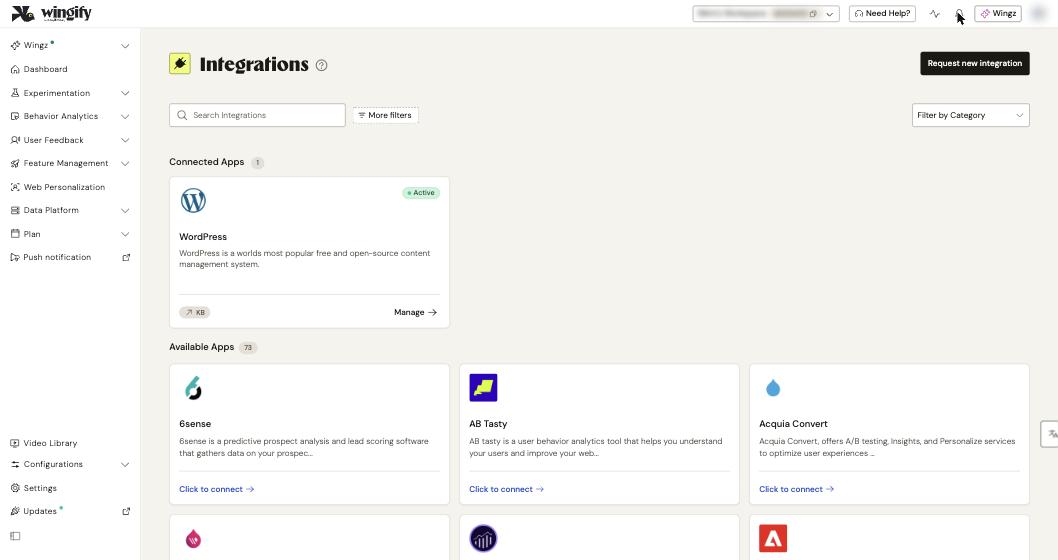
In the left sidebar, click Configurations > Integrations. Integrations appear as cards in two groups: Connected Apps (already set up, with an Active badge and a Manage link) and Available Apps (with a Click to connect link).
#2. Find the integration
Type in Search Integrations. Abbreviations also work, for example "GA" for Google Analytics. You can narrow the list with More filters (by product, connection type or status) or Filter by Category (for example Analytics, CMS or Customer Data Platform). If the tool you need isn't listed, click Request new integration.
#3. Open the integration and create a connection
Click the card (or Click to connect). The Info tab describes the integration, the data it shares, the required plan and the supported products. Then:
- Click Create connection in the top-right corner.
- Select a connection type. For example, GA4 offers Send campaign data to GA4 and Import audiences from GA4, and Segment offers Send campaign data to Segment, Send survey data to Segment and Import Audiences from Segment.
- Enter a Connection Name you'll recognize (for example "GA4 - Production") and fill in the integration-specific fields. For GA4, you can optionally add a Measurement ID and click Sign in with Google to select the GA Account and Property/App.
- Click Create Connection.
The connection now appears on the Config tab under Active Connections, and the integration is active.
Note: Many older help articles say to "enable the integration" or "select a checkbox on the Config page". In the current interface, creating a connection replaces both steps. To disable an integration, delete its connection.
Tip: Switch on the Default toggle for a connection to apply it automatically to all new campaigns. Existing campaigns aren't affected.
#4. Turn the integration on in a campaign
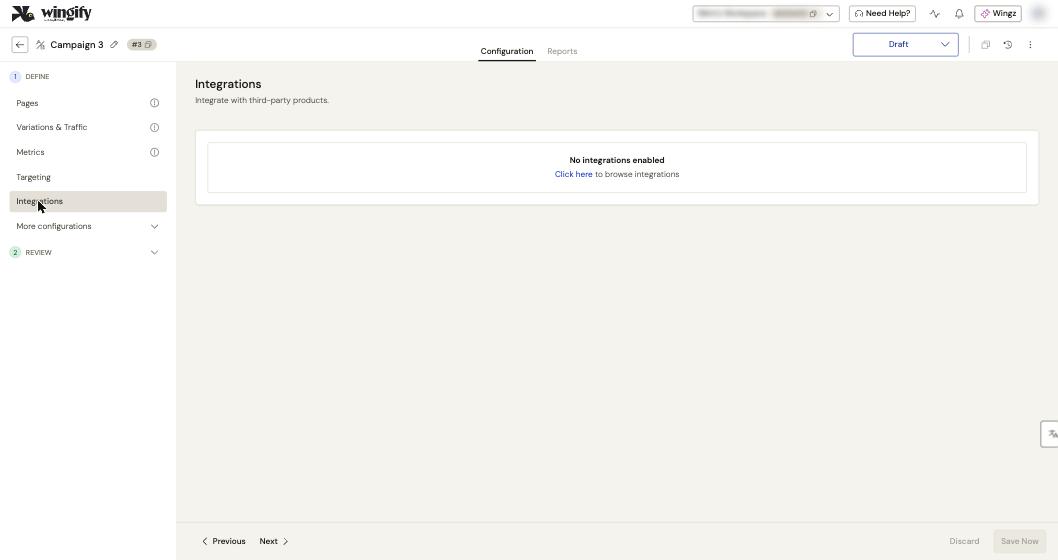
For integrations that send campaign data (such as GA4, Segment and Shopify), open the campaign from Experimentation > Web Experimentation and go to the Integrations step. Select the integration and, if you have several connections, choose the right one in the connector dropdown. Then save the campaign.
#5. CMS and e-commerce plugins
For platforms such as WordPress, the plugin installs the SmartCode for you. In WordPress, install the plugin, then go to Settings > VWO, enter your Wingify account ID and choose Asynchronous. The plugin can also track WooCommerce events. For Shopify, create a Send campaign data to Shopify connection to make Wingify campaign data available to Shopify Custom Pixels.
#Check that it worked
- The integration card shows Active under Connected Apps.
- For GA4: visit a page with a running campaign. In the browser's developer tools, open the Network tab and filter on "collect". The payload should contain the
experience_impressionevent (gtag.js) or thewingifyevent (GTM), with a variant string such aswingify-<campaign ID>-<variation ID>. Accounts created before June 14, 2026 use thevwo-prefix.
#Common questions
I don't see Create connection or Click to connect. Why? Connecting integrations from the dashboard requires Admin access. Ask an Admin, or ask for your role to be changed.
A connection option is greyed out. Why? Some connection types allow only one instance. If one already exists, the option is disabled. On Enterprise plans, you can create several Send campaign data to GA4 connections.
What happens if I delete a connection? The integration stops working immediately, and the deletion can't be undone. To use it again, create a new connection and re-enter the details.
My older integration shows a connection called Default. What is it? It's your previous configuration, migrated automatically. It keeps working, and you can rename or replace it.