
Reuse pages and creative assets (Pages, Pages Copilot, Asset Hub)
Save groups of URLs as reusable Pages (by hand or with Pages Copilot) and keep images, widgets, themes and code snippets in Asset Hub, so every campaign starts from the same building blocks.
The Wingify Guide can move a cursor on your screen inside the app and walk you through this, click by click (6 steps).
#When to use this
You run an online furniture store and every quarter you launch tests on the same chair pages: a clearance banner, then a new product card, then a personalization. Instead of retyping the URL rules each time, save them once as a Page and pick it in each campaign and metric. In the same way, Asset Hub keeps the images, widgets, themes and code snippets your designers approved, so marketers reuse them in the visual editor and surveys.
#Before you start
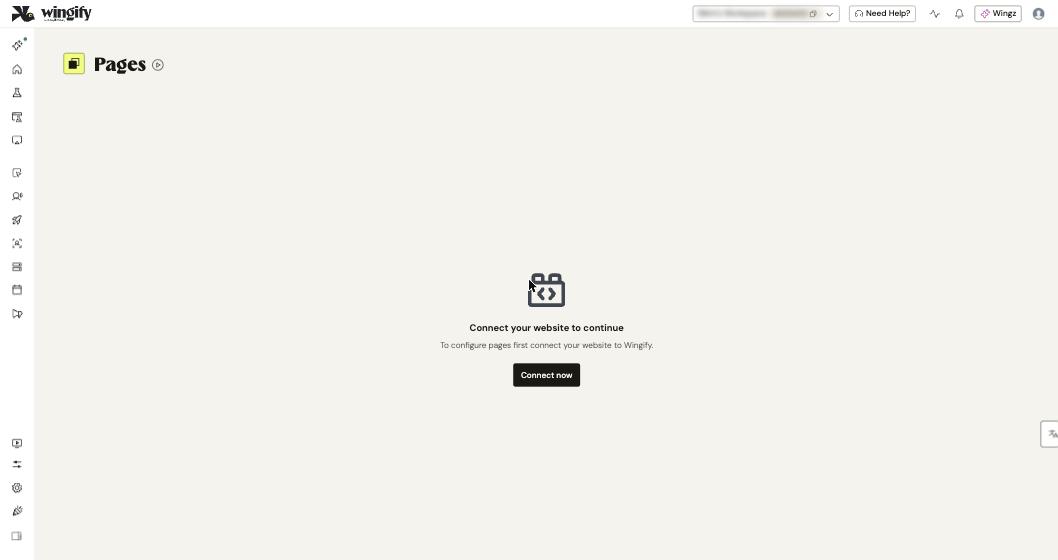
- A website connected to Wingify with SmartCode. Until then, Pages shows "Connect your website to continue".
- Pages works in Web Experimentation (except Split URL tests), Web Rollout and Web Personalization. Editing, cloning and archiving Pages requires the Owner or Admin role.
- Asset Hub is available with Web Rollout and Web Personalization on the Enterprise plan; Widgets and Code Snippets require Enterprise. You need the Design role or higher to create assets (Browse can only view).
- Pages Copilot is in Early Access for accounts with Data Platform on Growth, Pro or Enterprise.
#Steps
#1. Open Pages
Go to Configurations > Pages and click Create.
#2. Define the page's URLs
Enter a Page Name. In Targeting, choose a URL match type and enter the URL or pattern (for example, https://www.examplefurniturestore.com/indoor/chairs*). Use Include page and Exclude page to add or remove URLs; the ⋮ menu offers Ignore query string, Ignore fragment and Case insensitive. You can also start from an existing page under Saved Page.
Optionally match pages with a Selector Path (a CSS selector that must or must not be present) or JS Code (a function that returns true or false), each with a Poll Until setting.
Note: For accounts created on or after June 14, 2026, Selector Path and JS Code are enabled on request; older accounts need SmartCode 3.0.
#3. Set the Default URL and save
In Default URL, enter one concrete URL that Wingify loads in the editor, previews and heatmaps (a pattern like chairs* can't be loaded). Optionally Add description, then click Create. The page's tabs show its Definition, Metadata, Campaigns, Linked Pages, Linked Metrics and Timeline.
#4. Let Pages Copilot write the rules (optional)
On the Copilot tab, pick a preset or describe the pages in plain language, for example: "My URL looks like wingify.com/product/A1. Include all product pages ending in series A1 to A10 and B1 to B10." Click the wand icon to get three refined prompts and Apply Prompt on the best one. You can attach up to 4 files (such as a .csv of URLs or a screenshot), 20 MB in total. Review the generated configuration, click Edit if needed, and save it. Copilot also works in the Pages step of a campaign.
#5. Use the page in campaigns and metrics
In a campaign's Pages step, open the dropdown for Include pages where… and choose your page under Saved Page. The Editor URL is filled from the page's Default URL. To reuse a URL setup you've just built inside a campaign, click Save for future use. In Data Platform > Metrics, pick the page under Page URL for Click, Page visit, Form submit or Engagement events (not for custom events).
Warning: Don't edit a page used by a running campaign; it affects that campaign's results. Clone it instead. Archiving a page doesn't affect running campaigns.
#6. Upload images to Asset Hub
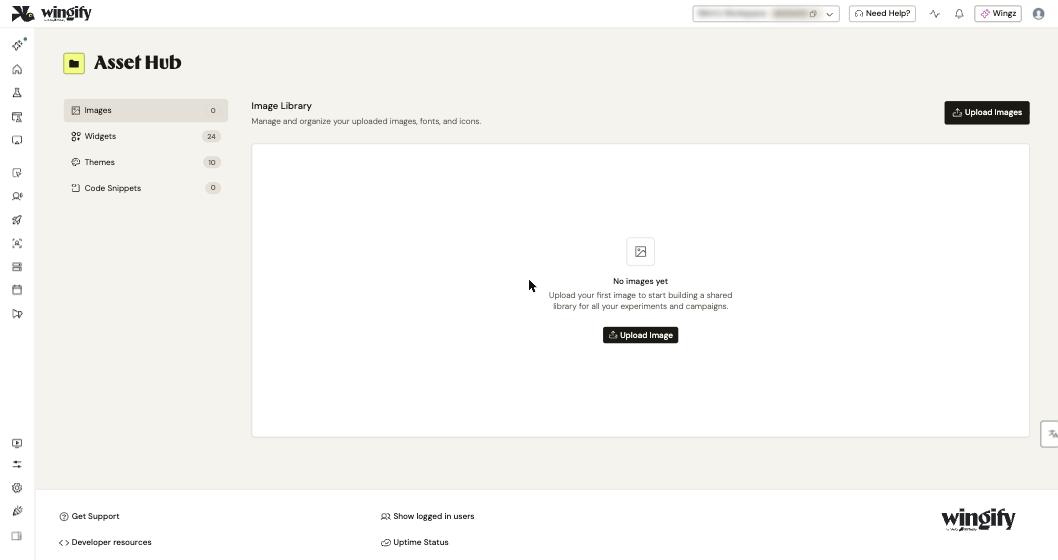
Go to Configurations > Asset Hub. On Images, click Upload Images and select up to 10 files at a time, 2 MB each (.png, .jpg, .jpeg, .gif, .svg, .webp, .ttf, .otf, .avif), then click Done. The Image Library also lists images uploaded through the visual editor.
#7. Create widgets, themes and code snippets
- Widgets: browse Standard widgets or click Create Widget, add a name, optional description and HTML, CSS or JavaScript (up to 10 MB), then Create. Filter by Standard or Custom, and clone custom widgets.
- Themes: click Create theme, name it, and set background and border colours, typography, radio buttons and forms on the Configuration tab. Themes are available in both the visual editor and surveys.
- Code Snippets: click Add snippet, enter a Snippet name and Description, add HTML, Styles or JavaScript, and click Create. New accounts start with no snippets.
#Check that it worked
- Open your page's Campaigns and Linked Metrics tabs to see where it's used.
- Launch the visual editor in an A/B, multivariate, Web Rollout or Web Personalization campaign and confirm your images, widgets and themes are offered there.
#Common questions
Why does Pages say "Connect your website to continue"? No website is connected yet. Install SmartCode first; see Install the SmartCode.
Can I delete assets from Asset Hub? No. Deletion isn't available for any asset type, to avoid breaking live campaigns.
Why isn't my survey logo in the Image Library? Only images uploaded via the visual editor in supported campaigns appear there.
Widget creation fails. What's wrong? Check that the combined HTML, CSS and JS is under 10 MB, that your plan is Enterprise, and that your role is Design or higher.