
Advanced SmartCode setup: self-hosting, reverse proxy, CSP and SmartCode security
Harden and control how the Wingify SmartCode loads and talks to Wingify: allow it in your CSP with a nonce, restrict it to your registered sites, route calls through your own server, or self-host campaign files.
The Wingify Guide can move a cursor on your screen inside the app and walk you through this, click by click (9 steps).
#When to use this
Your security team reviews every third-party script. They want to know exactly which domains Wingify loads from and which calls it makes. They want a strict Content Security Policy (CSP) with nonces, and a guarantee that nobody can copy your SmartCode onto another site. Some teams also want Wingify traffic to pass through their own servers, or campaign files served from their own infrastructure. This guide covers each option. Most teams only need the CSP and SmartCode Security. Reverse proxy and self-hosting have real trade-offs.
#Before you start
- The SmartCode is installed in the
<head>of your pages. See Install the SmartCode. - You need Admin or Owner rights for Settings pages, and a developer for server and CSP changes.
#Steps
#1. Allow Wingify in your Content Security Policy
Go to Configurations > Websites and Apps > Content Security Policy (CSP). The page shows a complete CSP header with every Wingify directive (worker-src, script-src, frame-src, connect-src, style-src, img-src, font-src) for *.vwo.com, *.visualwebsiteoptimizer.com and *.vwo.io. It also explains what each directive does. Click Copy (or Share) and merge only the directives your policy already has.
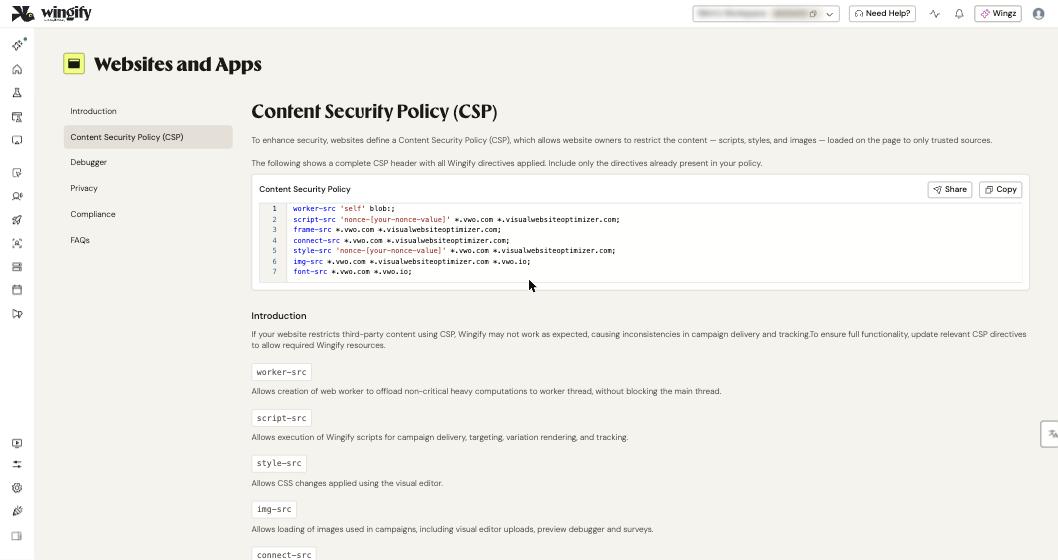
Without these rules, browsers block Wingify, and variations and previews don't load.
Working with nonce: the script-src and style-src lines include 'nonce-[your-nonce-value]'. Generate a nonce on each response. Put it in your CSP header and add the same value as a nonce attribute on the SmartCode <script> tag. If a nonce isn't possible, the page offers 'unsafe-inline' instead. The nonce is the recommended option.
Tip: After changing your CSP, run the Debugger (same menu). Its CSP Errors Check confirms that nothing is blocked. See Check that SmartCode works.
#2. Restrict the SmartCode to your registered websites
Go to Settings > Security and scroll to SmartCode Security. Select Restrict SmartCode usage to registered websites and apps and click Save. Wingify then accepts data only from domains registered in your account, and blocks data collection requests from any other domain. Before you turn this on, make sure every domain where you run Wingify is registered in Websites and Apps, including staging.
#3. Customize the SmartCode (cookies, timeouts)
In Configurations > Websites and Apps, open your website and go to Code > HTML. In the SmartCode section, click ⋮ > Settings to open Customize SmartCode. Select Cookie configuration to set:
- Cookie duration: 100 days by default. Changing it can cause data discrepancies.
- Cookie domain: use it when Wingify cookies aren't stored on your domain by default.
- Cookie path:
/by default, meaning every page.
The same settings exist as JavaScript variables placed before the SmartCode (_vis_opt_cookieDays, _vis_opt_domain). You can also raise settings_tolerance and library_tolerance (2000 and 2500 ms by default) for visitors on slow connections. Only set hide_element to '' if you accept the risk of a flash of original content.
#4. (Optional) Route Wingify calls through a reverse proxy
With a reverse proxy, the SmartCode sends its calls to your server first. You can then inspect or filter data before it reaches Wingify, and ad blockers no longer block the calls. In the installed SmartCode, replace https://edge.wingify.net with either:
- a subdomain or separate domain you control, for example
https://sub.mydomain.com, or - a path on your main domain, for example
https://mydomain.com/wingify.
Then configure your server to forward those requests to https://edge.wingify.net with the X-Forwarded-Wingify header. The help center gives a Node.js (http-proxy-middleware) example for both setups.
Warning: Behind a proxy, Wingify can't see visitors' IP addresses. You can no longer segment by location, device type, device OS or IP.
#5. (Optional) Self-host campaign JavaScript
Go to Settings > Campaigns, scroll to Self-Host campaign JS ("Host campaign JavaScript files on your own server") and click Download Script File. Upload the file to your server and reference it in the <head>, for example <script src="//domain.com/your_directory/vwo_static.js"></script>. If several tests run on one page, upload each test-specific file (wingify_test_<CampaignID>.js) before the common script. Wingify's servers then only register visits and conversions.
Warning: You must re-download and re-upload the file after every change to a campaign. Self-hosting also disables geo-targeting, cross-domain tracking, Custom URLs, live previews, Adhere to Do Not Track, and all Behavior Analytics features. Wingify emails you when the files need an update, but has no control over files on your server.
#6. Share the technical reference with your security team
Two help-center references list exactly what the SmartCode does in the browser:
- Network calls: for example
/tag/<account-id>.js(SmartCode 3.0 settings and libraries),/v2/dyn(per-visitor data),/infoand/ping_tpc.php(cross-domain cookies), and/cdata/abm/data(only when ABM is active). - Local storage keys: for example
wingify_<acc-id>_config(SmartCode config), survey state and widget state. These keys persist until they are deleted.
#Check that it worked
- Run the Debugger on a live page: SmartCode Detection, Placement and CSP Errors checks should pass.
- In developer tools, check the Console for CSP violations, and check in Network that Wingify requests return 200. With a proxy, the requests should go to your domain.
- Preview a running campaign to confirm variations still render.
#Common questions
Does Wingify inject content or collect PII through the SmartCode? According to Wingify, it only delivers the experiences you design and doesn't gather personally identifiable information. Query parameters that look like emails, phone numbers or passwords are anonymized by default (Settings > Privacy Center).
Can I use the Wingify browser plugin instead of fixing my CSP? Only for preview and QA. Live visitors still need your CSP to allow Wingify.
Why is self-hosting not recommended by default? Every campaign change requires a new upload, and several features stop working. It mainly makes sense if Wingify's CDN has no node near your visitors.
#Learn more
- How to Whitelist Wingify in Your Website's Content Security Policy (CSP)?
- Configure Security Settings in Your Wingify Account
- Reverse Proxy Methodology for Wingify
- Host Wingify JavaScript Files on Your Server
- Customize your Wingify SmartCode
- Wingify Network Calls
- Wingify Local Storage Keys