
Check your plan, MTU/MAU usage and invoices
See which plan each product is on, how much of your monthly visitor quota you've consumed, and where to find invoices and billing details.
The Wingify Guide can move a cursor on your screen inside the app and walk you through this, click by click (3 steps).
#When to use this
Finance asks whether you'll exceed your quota before renewal, or you need last quarter's invoice for accounting. Wingify bills most products on unique visitors per month. This guide shows where to check your plan and consumption for each product, how visitors are counted, and where invoices and billing details are kept.
#Before you start
- All roles can view account and usage details and invoices.
- Only Owners and Admins can update billing information and payment methods. According to the help center, the billing section (Subscription & Invoices) is only visible to them.
#Steps
#1. Open the Usage page
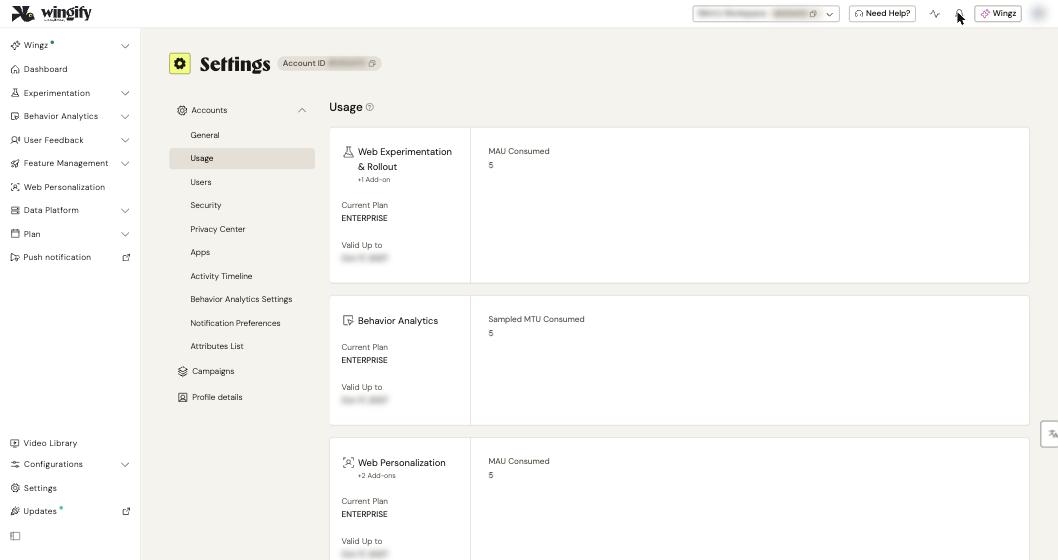
In the left sidebar, click Settings > Usage. You see one card per product, for example Web Experimentation & Rollout, Behavior Analytics and Web Personalization, each with:
- Current Plan (for example, ENTERPRISE) and any add-ons
- Valid Up to: the end date of the subscription
- consumption for the period: MAU Consumed or Sampled MTU Consumed, depending on the product
#2. Understand how visitors are counted
- Web Experimentation, Web Personalization and Rollout: a visitor counts once per billing month when they become part of at least one campaign, however many campaigns they join. Your total website traffic isn't counted, only visitors who enter campaigns.
- Behavior Analytics (web): Wingify samples visitors evenly across the month up to your purchased volume. Each sampled visitor counts once, and all their heatmap, recording, form and funnel data is collected.
- Feature Management: a user counts once per billing cycle when at least one feature flag is evaluated for them with the same user ID. Turning on impact analysis on a rollout rule tracks 100% of evaluated users, which can raise consumption.
- User Feedback: a user counts once per month per platform (web, app or link) when a survey is served to them.
All products except Behavior Analytics draw from a shared MTU quota. Behavior Analytics has its own. Unused quota expires at the end of the billing cycle; it doesn't roll over.
Note: Visitors identified as bots or crawlers don't consume MTU or MAU.
#3. Follow the trend on the Dashboard
On the Dashboard tab, the Visitor overview chart shows consumption per product (for example Web Experimentation & Rollout MTU, Behavior Analytics MTU and MAU). You can filter by workspace and product, pick a date range (such as Last 30 days), and switch between daily and other views.
#4. Find invoices and subscription details
The help center describes a Subscription & Invoices section in Settings with these pages:
- My Subscription: active products, plan, next renewal date, billing frequency, add-ons, and a daily or monthly MTU usage graph with past billing cycles.
- Invoice History: filter by Invoice ID or Amount, download invoices, or Export CSV. Only invoices from online payments appear here. Invoices paid by wire transfer don't.
- Visitor Allocation: divide quota between workspaces (Enterprise, on request).
- Billing Profile: billing details and saved cards.
If this section doesn't appear in your Settings menu, ask your account Owner or an Admin.
#5. Update billing details (Owner or Admin)
In Billing Profile, edit your name, company, phone, email address or VAT ID, click Save, then enter the 8-digit code sent to your registered email address to confirm. You change card details in the 2Checkout portal. To change the billing address or billing email, contact Wingify Support.
Warning: If payment isn't made by the renewal date, you have a 7-day grace period. After that, all campaigns pause and data collection stops.
#Check that it worked
The Usage cards show the plan and consumption you expect for each product. If a number looks too high, check whether internal traffic is counted. You can exclude it in Settings > Privacy Center > IP Addresses to Exclude.
#Common questions
Is a visitor counted twice if they join three tests in the same month? No. In Web Experimentation and Web Personalization, each visitor counts once per billing month, however many campaigns they join.
Does unused quota carry over? No. Rollover isn't supported in any plan, and unused quota expires at the end of the billing cycle.
How do I upgrade or compare plans? The help center describes a View Plan page in Settings with pricing by MTU and a feature list for Growth, Pro and Enterprise. To change plans, contact Wingify Support or your account manager.
Can I split quota between workspaces? Yes, with Visitor Allocation on Enterprise plans (on request). Otherwise, all workspaces share the quota on a first-come, first-served basis.