
Create a reusable segment
Save a visitor segment and a trigger once, then reuse them across campaigns for targeting and to compare groups in your reports.
The Wingify Guide can move a cursor on your screen inside the app and walk you through this, click by click (4 steps).
#When to use this
You regularly analyze results for "Pro plan subscribers" and target campaigns at "returning visitors from the US". Rebuilding those conditions in every campaign is slow and error-prone. Save them once as a segment in My Segments and reuse them everywhere. A segment decides who qualifies; a trigger decides when the campaign fires for them (for example, after a 50% scroll). You can save both.
#Before you start
- Your workspace has Data Platform. With it, you can build segments on custom attributes and events (see Track custom events and attributes).
- Only Owners and Admins can edit, clone or delete segments in Data Platform > Segments.
- Segmentation applies in two separate ways: targeting (pre-segmentation, before the campaign) and report segmentation (post-segmentation, after data is collected). One can't replace the other.
#Steps
#1. Check the standard segments
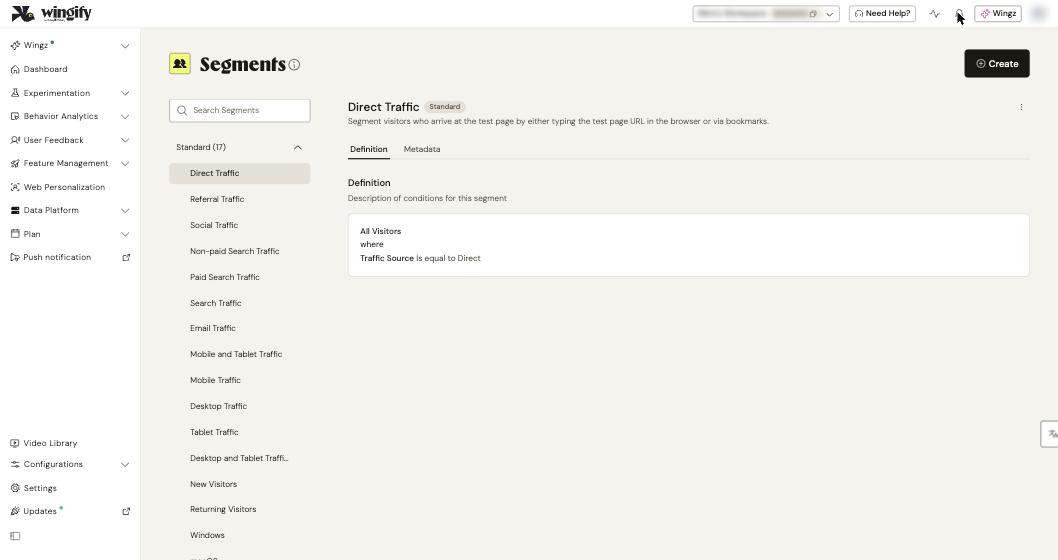
Go to Data Platform > Segments. The Standard list includes ready-made segments such as Direct Traffic, Referral Traffic, Social Traffic, Paid Search Traffic, Mobile Traffic, Desktop Traffic, New Visitors and Returning Visitors. Click one to see its Definition (for example, "All Visitors where Traffic Source is equal to Direct").
#2. Create a segment in Data Platform
Click Create. Enter a Segment Name, then build the Definition: pick a standard or custom attribute in the first dropdown, choose the relation, and enter the value. Click Add another condition to add more. If you use Session Recordings, you can also pick Struggle under Events to find visitors with dead clicks or rage clicks. Optionally click Add description, then click Create. The segment appears under My Segments.
Note: For custom attributes, choose a scope. User Scope returns all sessions of a matching visitor; Session Scope returns only the matching sessions. Scope applies to Funnels, Heatmaps and Session Recordings.
#3. Save a targeting segment from a campaign
To reuse an audience for targeting, open a campaign's Targeting step and click the edit icon next to Segments (default: All Traffic). In the Custom Segment tab, add your conditions, enter a Segment Name (up to 40 characters), and click Save Segment. It's added to My Segments; in any other campaign, open the My Segments tab and select it.
Tip: Click Apply instead of Save Segment if you want the audience for this campaign only.
#4. Save a reusable trigger (optional)
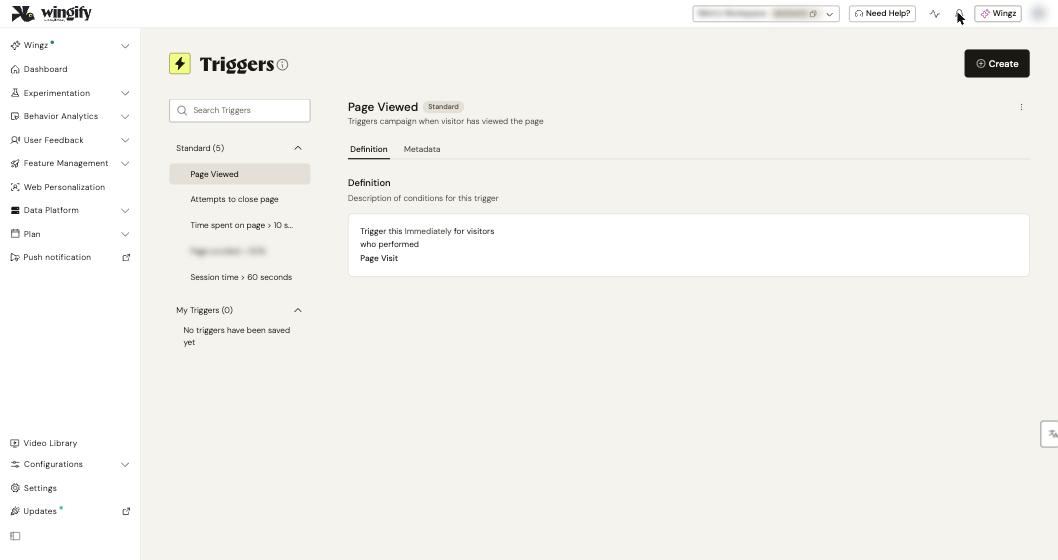
Go to Data Platform > Triggers. Standard triggers include Page Viewed, Attempts to close page, Time spent on page > 10 seconds, Page scrolled > 50% and Session time > 60 seconds. Click Create to build a custom trigger: choose Immediately or After, pick a standard or custom event, add filters with + where, and chain conditions with And, Or or And then. Click Save Trigger; it appears under My Triggers.
#5. Use your segment to compare groups in a report
Open an A/B test report and go to All Visitors > My Segments. Select the segments you want to compare (for example, each subscription level) and click Compare. The report table adds a row per segment.
#Check that it worked
- The new segment appears under My Segments in Data Platform > Segments, and your trigger under My Triggers in Data Platform > Triggers.
- In a campaign's Targeting step, the Segments section shows the name of the segment you selected.
- Use Live Preview to check that a visitor matching the segment sees the campaign.
#Common questions
What happens if I edit a saved segment used by other campaigns? The change applies to every campaign using it, and data for linked goals and funnels is flushed. Clone the segment instead if you only need a variation.
What happens if I delete a saved segment that a campaign uses? The campaign keeps working: the segment is replaced by a custom segment with identical criteria.
Why is my saved segment greyed out in a campaign? If a segment's conditions don't apply to the feature you're configuring, the segment is disabled there.
Where is Data Platform > Audiences? The help center describes reusable targeting audiences under Data Platform > Audiences. If you don't see that menu, save targeting segments from the campaign as described in step 3. See Create and Manage Audiences.