
Connect Jira, HubSpot, Zapier and other marketing tools
Create Jira tickets from observations and hypotheses, send campaign data and recordings to HubSpot, target HubSpot lists, push offline conversions with Zapier, and track phone calls as conversions.
The Wingify Guide can move a cursor on your screen inside the app and walk you through this, click by click (8 steps).
#When to use this
You want Wingify to fit into the tools your team works in every day. For example, you want each new hypothesis to become a Jira ticket for the dev team, marketing wants to see which variation a HubSpot contact saw, or sales wants signed contracts or phone calls to count as conversions in your A/B test. These integrations are in the Productivity, Marketing and Call Tracking categories of the Integrations dashboard.
#Before you start
- You have Owner or Admin access in Wingify to create connections.
- For HubSpot, the Wingify SmartCode and the HubSpot tracking code are both on your site. Sending campaign data requires a HubSpot Enterprise plan (custom behavioral events).
- For Jira, you need a Jira user name, an Atlassian API token, your instance URL, and at least member access to the Jira project.
#Steps
#1. Find the integration
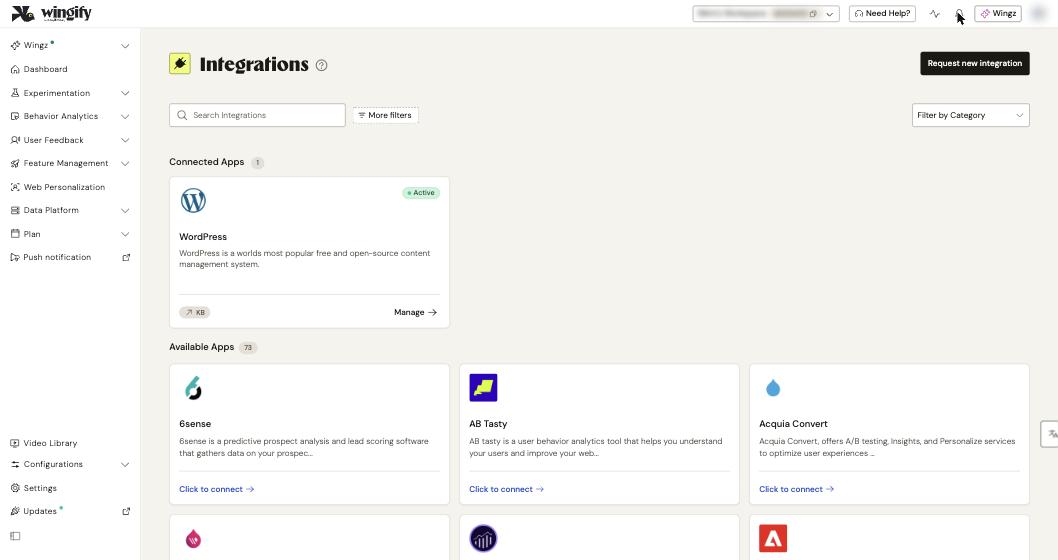
Go to Configurations > Integrations. Search by name, or use Filter by Category and choose Productivity, Marketing or Call Tracking. Open the card to read the Info tab.
#2. Connect Jira and create tickets from your plan
- On the Jira card, create a connection. Enter a Connection Name, User name, API Token and Instance URL, then click Create Connection.
- In Complete JIRA integration, choose the feature (observations or hypotheses). Then select the Jira project, and choose Push all observations / Push all hypotheses or Let me choose.
- Under Advance Settings, pick the Default Ticket type: Task, Bug, Story or Epic. Then click Save. You can click Create test ticket to try it.
Then go to Plan > Observations > Create an Observation, or Plan > Hypotheses > Create a Hypothesis, and check Create as Jira ticket. With Push all, this box is checked by default. See Plan observations and hypotheses.
#3. Connect HubSpot
On the HubSpot card, click Create Connection and choose one or more types:
- Send campaign data to HubSpot: choose the HubSpot API event type. For Custom Events, first create a HubSpot custom event (Send via API) with the string properties Campaign, Variation and Experience. Then paste its tracking ID into Event Internal Name. Custom Behavioral Event (Legacy) uses the older HubSpot events.
- Send session recordings to HubSpot: choose Secure link (Wingify login required) or Open link (no login needed), then click Connect Wingify with HubSpot.
- Import Lists from HubSpot: click Authenticate Wingify on HubSpot. Turn on Enable automated data sync to let Wingify create the required custom event and workflow in HubSpot for you.
Then, under Active Connections, click Manage Lists > Add list to import a HubSpot list. The first sync can take up to 24 hours, and lists sync every 24 hours after that. The number of lists counts toward your Attributes List quota.
#4. Use HubSpot data in campaigns
- To send campaign data, open the campaign's Integrations step, select HubSpot and click Save Now.
- To target a list, go to the Targeting step, create a Custom Segment, select HubSpot List in the first dropdown and pick your list. Click Save Segment, name it, then click Apply.
#5. Push offline conversions and attributes with Zapier
This integration is set up in Zapier. Create a Zap, choose a trigger (for example, Marketo "Lead Updated" to "Customer"), and choose Wingify as the action app:
- Send Event: enter the Account ID, the Wingify UUID, the Event Name and optional properties. The event can then be used as a metric in your campaign reports.
- Set User Attribute: enter the Account ID, UUID and attribute name and value, for example a HubSpot lifecycle stage for report segmentation.
The UUID comes from the _wingify_uuid cookie (_vwo_uuid for accounts created before June 14, 2026). Capture it in a hidden form field so your CRM stores it.
#6. Count phone calls as conversions
- CallTrackingMetrics (Data Platform accounts): in CTM, go to Settings > Integrations > VWO and turn on Send conversion events. Create a trigger in Calls > Triggers with the action VWO360 Conversion. In Wingify, register the event under Data Platform > Events > Unregistered Events, then add it as a metric.
- WhatConverts (non-Data Platform accounts): set up the connection in WhatConverts (Integrations > Wingify > + Add Connection). Then add a custom conversion goal in your campaign.
Tip: Other marketing integrations work the same way: open the card and create a connection. For example, Marketo can send campaign data and import Smart Lists (Pro and Enterprise). Salesforce, 6sense, Clearbit, ZoomInfo and Demandbase support account-based targeting or data enrichment. Check each card's Info tab for the plan it requires.
#Check that it worked
- Jira: the observation or hypothesis shows a link to its Jira ticket (View this in Jira).
- HubSpot: custom events appear in Reporting & Data > Custom Events. Recording links appear in a contact's Activities, filtered by VWO. Imported lists show Last Synced On and Sync Status.
- Zapier: test the action in Zapier, then check that the event or attribute appears in Wingify.
#Common questions
If I delete an observation in Wingify, is the Jira ticket deleted too? No. Delete the ticket manually in Jira.
My HubSpot list is empty in Wingify. Why? Only contacts that have a UUID property are synced, so the list fills up gradually as visitors come back to your site. Check that the custom event and workflow exist in HubSpot.
Zapier says the account ID or UUID is invalid. Check your Wingify account ID. Also check that the UUID comes from the correct cookie for your account's creation date.
Who can connect integrations? Only Admins, from the Integrations dashboard. Publish users can turn integrations on or off in campaign settings. Browse and Design users can only view details.
#Learn more
- Integrate Wingify with Jira
- Integrate Wingify with HubSpot
- Target Your Wingify Campaigns Using HubSpot Visitor Lists
- Push Events into Wingify and Update User Attributes with Zapier
- Integrate Wingify With CallTrackingMetrics
- Integrate Wingify With WhatConverts
- Integrate Wingify with Marketo
Help-center sources (10)
- Integrate Wingify with Jira
- Integrate Wingify with HubSpot
- Send Wingify Campaign Data to HubSpot
- Push Your Wingify Session Recordings to HubSpot
- Target Your Wingify Campaigns Using HubSpot Visitor Lists
- Push Events into Wingify and Update User Attributes with Zapier
- Integrate Wingify With CallTrackingMetrics
- Integrate Wingify With WhatConverts
- Integrate Wingify with Marketo
- Navigate the Integrations Dashboard in Wingify