
Roll out a change or a winning variation to everyone
Publish a website change without a release cycle, or push the winning variation of an A/B test to all visitors, with Web Rollout.
The Wingify Guide can move a cursor on your screen inside the app and walk you through this, click by click (4 steps).
#When to use this
Your A/B test found that a shorter checkout headline wins, and you want every visitor to see it now, while your developers ship the permanent change later. Or you need to publish a policy-change banner today. Web Rollout lets you release a change built in the Visual or Code editor, target it to a segment if needed, and scale it up gradually. It runs on your existing SmartCode, so no new code is required.
#Before you start
- The Wingify SmartCode is installed on your site.
- You need admin or owner privileges to activate Web Rollout. Existing accounts can activate the free plan from the navigation.
- For path B, you need an A/B test (the Roll out feature is available only for A/B test campaigns).
#Steps
You can create a rollout from scratch (path A, steps 1-6) or directly from an A/B test report (path B, steps 7-9).
Path A: roll out a new change
#1. Open Web Rollout
In the left navigation, go to Experimentation > Web Rollout and click Create New Experience.
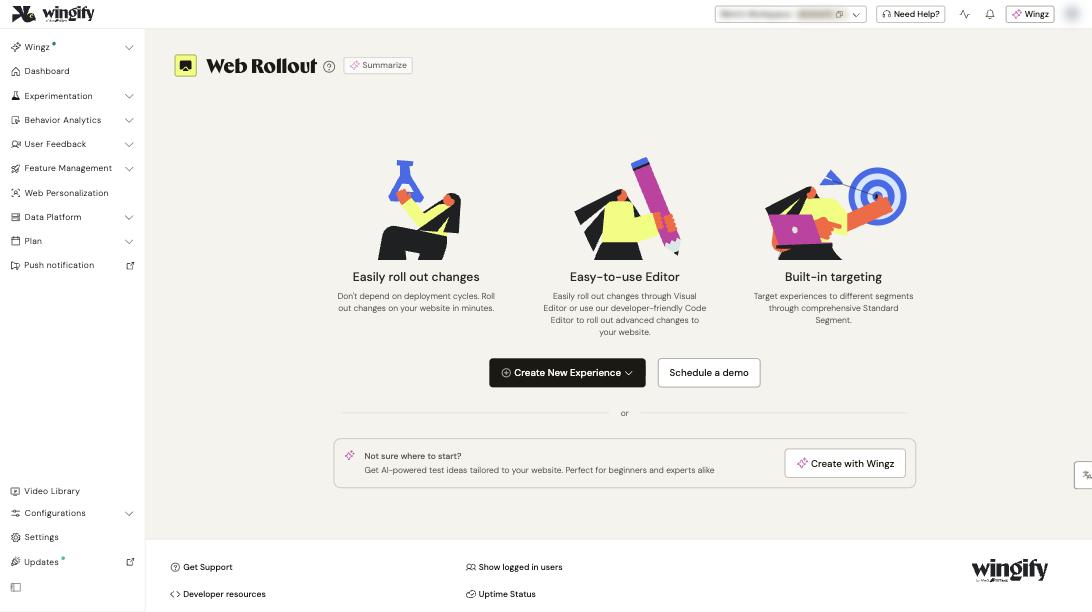
Tip: Prefer to describe the change in plain language? Click Create with Wingz instead. Wingz builds the change for you, but for rollouts it doesn't set up metrics automatically, so add them yourself afterward.
#2. Enter the pages
In Enter the URL of the pages(s) you want to roll out the experience, enter the page URL. Use Simple mode for one URL or Advanced mode for several. If your account has Data Platform, you can select saved Pages instead. Select Open in Code-only Mode if you prefer writing code, or Load campaign pages on mobile device to edit in a mobile or tablet view.
#3. Target a segment (optional)
To show the change only to certain visitors (for example, by location or device), use Enable campaign for a specific visitor groups and pick or build a segment.
#4. Make your changes
Click Next. The editor opens in a new tab. Add or modify elements with the Visual editor, or click Edit code to write the change. When you're done, click Next.
Note: Changes created in the Code editor can't be edited later in the Visual editor.
#5. Name the campaign and set traffic
On the Others page, enter a Campaign name. Use the Traffic Split slider to choose the share of visitors who see the change; anyone outside it keeps seeing the current site. Starting with a small percentage and increasing it is a simple staged rollout. Optionally add Integrations with third-party products and Advanced Options such as Manual campaign activation, Add to mutually exclusive groups or Enable Scheduling.
#6. Create and start
Click Create. From the summary, click Start Now to go live, or Preview Campaign and Start Later.
Path B: roll out an A/B test variation
#7. Open the test report
Go to Experimentation > Web Experimentation, open your A/B test and select Reports. Scroll to the table that lists all variations.
#8. Choose the variation to roll out
If there's a winner, click Roll out instantly next to it. Otherwise, click the vertical ellipsis (⋮) next to any variation except the control and select Roll out variation. This works for running, paused or archived tests.
#9. Review and start the rollout
In the Roll out variation popup, review which quota will be used and any warnings, then confirm. Click Preview to check the variation, then Start Campaign Now. Wingify copies the test's configuration into a new rollout campaign.
Warning: Starting the rollout automatically pauses the linked A/B test. If the test used manual campaign activation, replace the activation code on your site: the new campaign has a new ID.
#Check that it worked
- Use Preview Campaign and Start Later (path A) or Preview (path B) before going live.
- After starting, open your page in a new browser session: visitors in the traffic split should see the change.
- If you created the rollout from a test but didn't start it, it appears as a tile on the test's Summary and Report pages, so you can start it later.
#Common questions
How is Web Rollout quota counted? A visitor is counted once per month (from your Web Rollout plan's start date), no matter how many rollout campaigns they see. If they return the following month, they are counted again.
What happens when my Web Rollout quota runs out? If you have a testing quota, rollout campaigns use it; otherwise they are paused. If you haven't bought separate rollout quota, rollouts use your Web Experimentation quota.
Can I run the original A/B test and its rollout at the same time? No. Only one can run. To restart the test, pause the rollout first; Wingify recommends cloning the test so your data stays valid.
Why is there no Roll out option on my report? The option isn't shown when the control is the winner, and it exists only for A/B tests. You can still use Roll out variation on any non-control variation.