
Check incoming events live with Audit
Watch the events your website sends to Wingify in real time, inspect their properties, and confirm that your tracking works before you rely on it.
The Wingify Guide can move a cursor on your screen inside the app and walk you through this, click by click (6 steps).
#When to use this
Your developer just added a purchase event to the confirmation page, or you sent an offline conversion from your CRM, and you want proof that Wingify receives it with the right values before you launch a test on it. Audit, in Data Platform, streams the events coming from your website live, standard and custom, and shows the code of each one so you can check its properties.
#Before you start
- The Wingify SmartCode is installed on the page you're testing. If you're not sure, check it first with the Debugger (see Check that SmartCode works).
- Custom events are registered in Data Platform > Events. Only registered events appear in the Audit stream.
- Keep a second browser tab open on your website so you can trigger events while watching Audit.
#Steps
#1. Open Audit
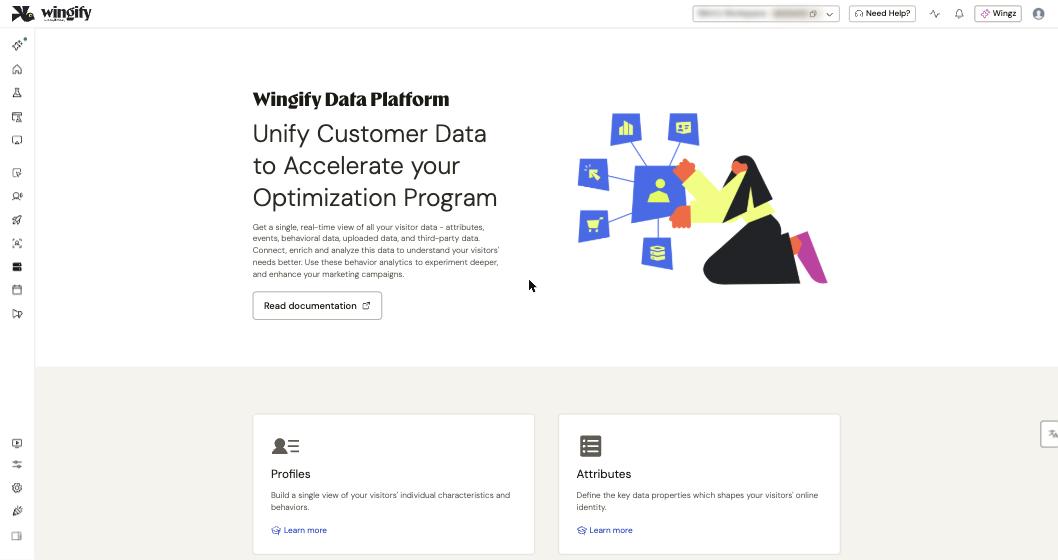
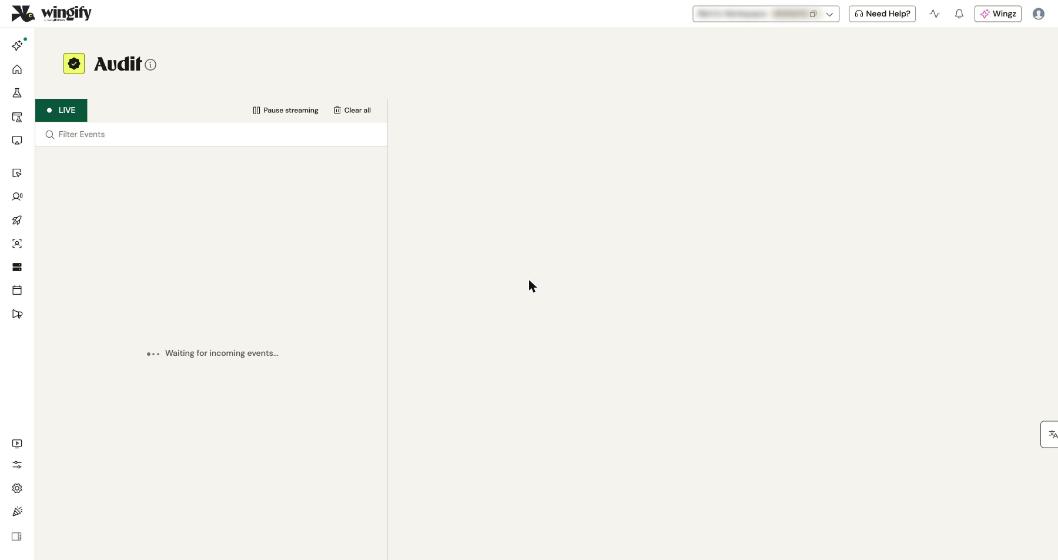
Go to Data Platform > Audit. The stream starts as soon as the page opens and shows a green LIVE badge. Until something happens on your site, you see "Waiting for incoming events…".
#2. Clear the list before you test
Click Clear all to remove previously streamed events. Starting from an empty list makes it easy to spot the event you're about to trigger.
#3. Trigger the event on your website
In your other tab, perform the action: load the page, click the button, submit the form, or complete a test purchase. For an offline conversion, send the POST request from your server.
#4. Find the event
Events appear in the list as they arrive. Type the event name in Filter Events to show only that event, for example purchase or Page Unload.
#5. Pause the stream and inspect the event
Click Pause streaming so new events don't push yours down the list; the status changes to PAUSED. Click the event: its code appears on the right. Check that:
- the event name matches the API name registered in Data Platform > Events,
- each property has a real value, not a placeholder such as
<number_value>orREPLACE_THIS_WITH_ACTUAL_REVENUE, - numbers are numbers (for revenue,
1500.0, not1,500), - the page URL is the one where you expect the metric to count.
Use the copy icon on the code to share it with your developer. Click Resume streaming when you're done.
#Tips for verifying tracking
- Event not in Audit at all? Check that the SmartCode loads on the page, that the event code runs after it, and that the event is registered. Events sent but not registered are listed under UNREGISTERED EVENTS in Data Platform > Events for 3 days: open one and click Register Event to keep it.
- New property missing? Properties you send that aren't defined yet show up under Unregistered Properties on the event's Properties tab.
- Event arrives but the metric doesn't convert? Compare the metric's conditions (URL, + where filters, event property) with what Audit shows. See Choose the metrics that decide your test.
- Check one visitor's history: go to Data Platform > Profiles, search your UUID (from the
_wingify_uuidcookie) with Search UUID, and open the Events tab for a timeline of that visitor's events during active campaigns. - Check a campaign end to end: use REVIEW > Live Preview in the campaign; see Preview, QA and launch your campaign.
- Offline conversions rejected? Accounts on EU or India data centers must use the
eu01oras01path prefix in the collect URL.
#Check that it worked
Your event appears in the Audit stream with the expected name and property values each time you perform the action. After that, the metrics built on it start converting in campaign reports and Metric Reports.
#Common questions
Does Audit show events from all visitors or only mine? Audit streams current events from your website, so on a busy site you'll see other visitors' events too. Use Filter Events and Pause streaming to isolate yours.
Does Clear all delete data? Clear all only empties the list on the Audit page so you can watch new events. It's meant for checking a newly added event.
Why does my event show in Audit but not in Journey Analytics or Metric Reports history? Custom events only collect data from the time they're created and registered; there's no history before that.
Can I check events sent from my server? Yes. After sending an offline conversion to the collect endpoint, you can verify the triggered event in Data Platform > Audit.